How to use Upscayl to make a small photo sharp again
Upscayl is a free, open source app that enlarges small or pixelated photos on your own computer. Steps for Windows, Mac and Linux, limits and fixes.
Upscayl is a free, open source desktop app for Windows, Mac and Linux that makes a small or pixelated photo bigger and cleaner. Its default models return an image four times as wide and tall. It needs a compatible graphics chip and cannot fix blur. Checked 25 Nov 2026.
This guide is on the blog of Munder Difflin, which is free and open source: a desktop app that runs a team of AI agents for all kinds of knowledge work, coding included, on your own computer. You do not need it for this guide; its install guide covers setup.
What is Upscayl?
It is a “Free and Open Source AI Image Upscaler” that “uses AI models to enhance your images by guessing what the details could be”, per its README. The latest release, “2.15 New Year Update” (v2.15.0), came out 25 Dec 2024. On GitHub, its licence is GNU Affero General Public License v3.0.
Will it work on your photo?
Only if the photo is small or pixelated, not blurred. The README FAQ says it “cannot de-blur or do focus adjustment on your image. If your image is out-of-focus or totally blurred, Upscayl is not the right tool for it.”
Our view: zoom in. If you see squares and jagged edges, try it; if you see soft smears, it will not help.
Will it work on your computer?
Only with a compatible graphics chip. The README says: “You’ll need a Vulkan compatible GPU (Graphics Card) to upscale images. Many iGPUs (integrated graphics) do not work but, no harm in trying”. The rough rule on the Troubleshooting page: a GPU “is usually either from Nvidia, named an ‘Arc’, or named with the letter R followed by a number or X; anything else is probably an incompatible CPU, which may work but only slowly with a workaround”.
It also needs Windows 10 or later, or macOS 12 or later (README), or Ubuntu 20.04 or later (Compatibility List).
How do you use Upscayl, step by step?
Download it, install it, then upscale a copy of your photo.
- Download it from the download page or the release page, and nowhere else. The files end in
win.exe,mac.dmgorlinux.AppImage. On Mac, take the file marked “DMG (Free)”; the page’s FAQ says the Mac App Store version is a paid one. - Install it.
- Windows: double click the exe file. If you get a SmartScreen warning, click “More Info” and then “Run Anyway” or press “YES” on the unverified publisher dialog. Do that only for a file from those two places. Then follow the installation steps.
- Mac: double click the dmg and drag the Upscayl icon into the Applications folder. Open Finder, click “Applications” in the left sidebar, find Upscayl and right click on it. Select “Open”. In the window that appears, press “Open” again.
- Linux: Upscayl “should be available on the software listings of most Linux operating systems”. For the AppImage, right click it, go to the Permissions tab, check “allow file to execute”, then double click the file.
- Copy your photo first. Keep the original safe; the result is a guess.
- Upscale one photo. Open the “Upscayl” tab, choose your photo, and choose a model, which the app calls the “Upscayling type”. Start the job and wait. The wiki Guide says “all the default models only support x4”; for a smaller scale, the app shrinks the x4 image.
For business use, the download page FAQ says “only General Photo (Real-ESRGAN), General Photo (Fast Real-ESRGAN) and Digital Art, allow commercial use. All other models are for personal use only.”

How do you try a second model, a batch, or go bigger?
The makers’ website names all three.
- A second model. The README credits name models such as “High Fidelity”, Remacri, Ultrasharp and Ultramix Balanced. Our view: run the photo through two and keep the one closest to the real scene, not the sharpest.
- A batch. “Batch Upscayl” does “several images in one go”. Do not stop it early; the README FAQ says to “simply wait for the process to finish”.
- Bigger. “Double Upscayl” will “Upscayl your images twice”, and the site says “up to 16x better resolution”: by our count, four times, done twice. Our view: use it rarely; it is a guess on a guess, and files get huge.
What does Upscayl get wrong, and how do you check?
It guesses, so small details can change: a letter on a sign, the pattern on a shirt, a face. Put the original and the result side by side and look at faces and text first.
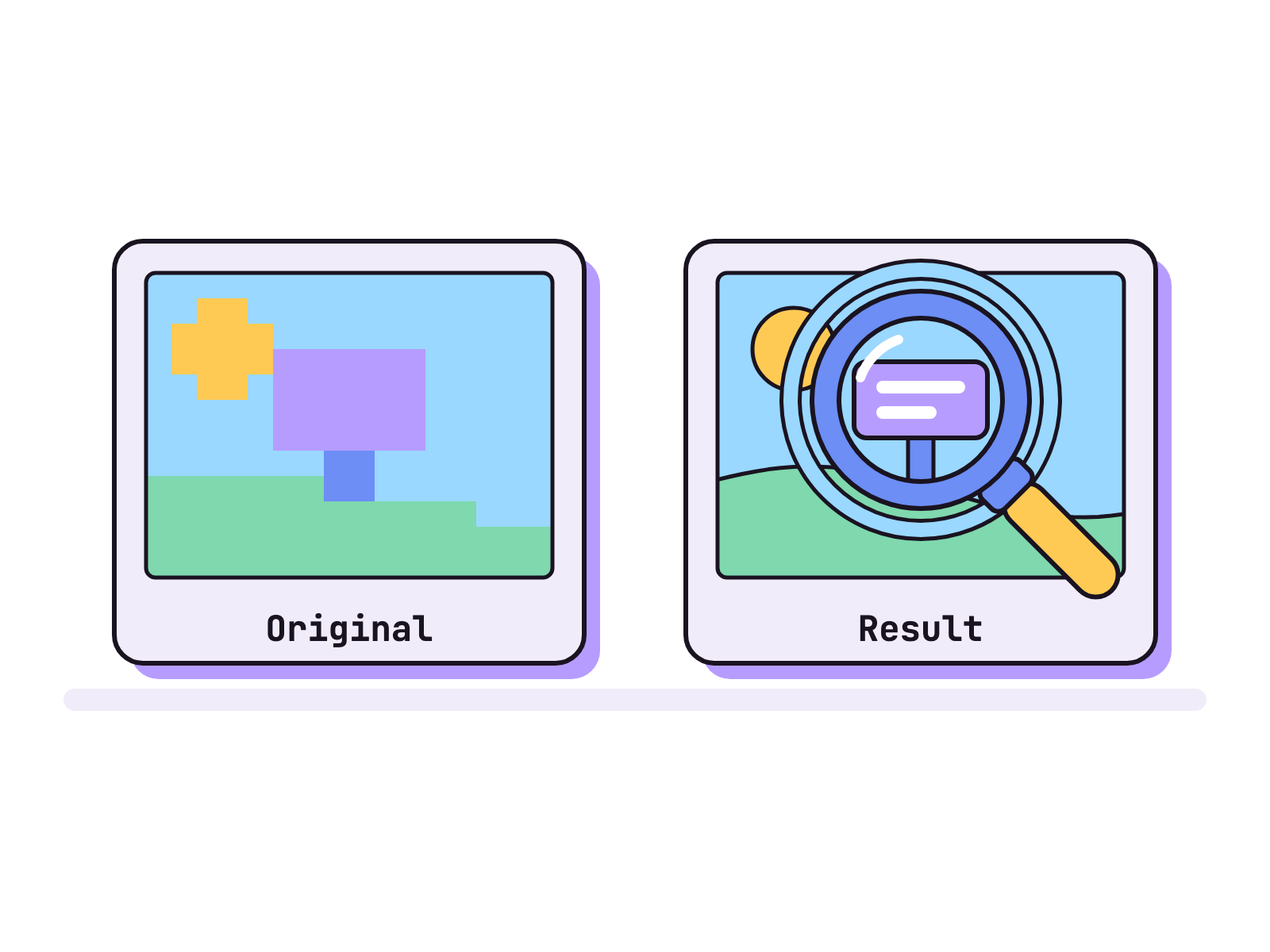
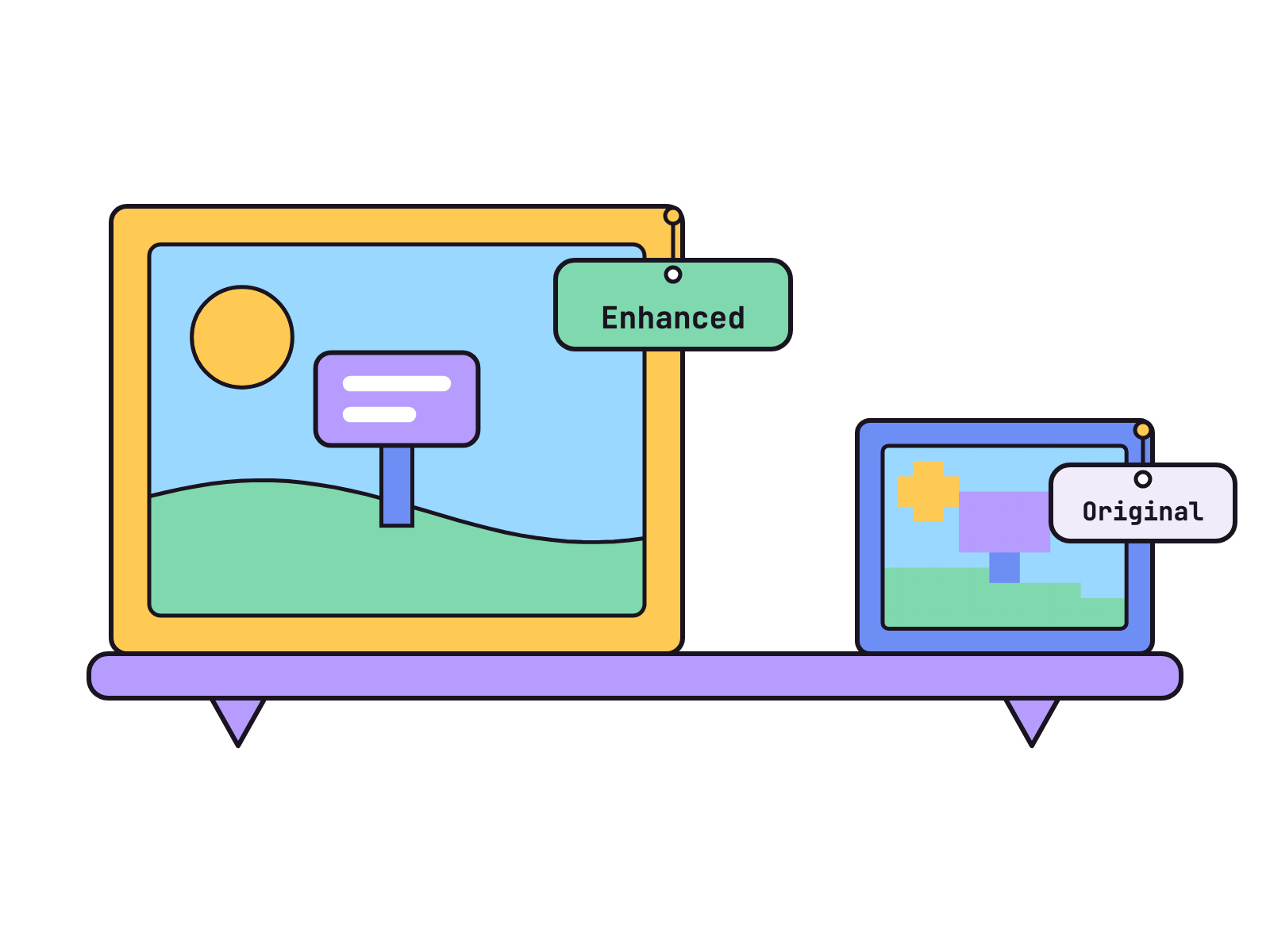
Our view: for a photo that matters, like a memorial or official one, tell people it was enhanced and keep the original. Never use an enhanced photo as proof of what something said or looked like.
Where does Upscayl do the work?
The desktop app does the work on your own computer’s graphics chip, which is why it needs one. The download page says “Upscayl Desktop does all the processing on your local machine.”
The same makers run a separate service, Upscayl Cloud; its privacy policy lists “Images you upload” among what it collects. Only enhance photos you have the right to use. See also: Why Local-First Matters for Your AI Agents.
What should you try when Upscayl fails?
Work down this list, which follows the makers’ Troubleshooting page.
- Update the app, or uninstall and reinstall it.
- Restart your computer.
- Set the GPU ID. After one upscale try, the logs area of the “Settings” tab lists your GPU IDs. Type your discrete GPU’s number, the separate graphics card, into the “GPU ID” box.
- Washed out colours: the app “currently only supports the sRGB color profile”, so convert the photo to sRGB first.
- Linux: install graphics drivers, including Vulkan drivers.
- Mac: “Make sure you’re using the latest MacOS update.”
- Windows: set the app to performance mode under advanced display settings, or Windows may override your GPU ID.
- No graphics chip: the download page says “CPU only mode is not supported at the moment”. The docs link a slow workaround, “Using Upscayl on Windows and Linux with only a CPU”.
- Still stuck: press the COPY button by the logs in the “Settings” tab and follow How to ask for help: GitHub issues only, not email or Telegram. Our view: read logs before you post them in public.
Also on this blog: Gemini Notebook: turn a long contract into an audio summary.
Sources
All opened 25 Nov 2026.
- Website, download page, Upscayl Cloud, privacy policy
- README, latest release
- Wiki: Guide, Troubleshooting, Compatibility List, How to ask for help
- Documentation, General Fixes
- Issue 390, custom models, Mac App Store
This guide is independent. It is not made, checked or paid for by the Upscayl team.
FAQ
Is Upscayl free?
The desktop app is free and open source. Its download page, read 25 Nov 2026, says "Upscayl Desktop is completely free and open source" and labels the Mac file "DMG (Free)". The Mac App Store version is a paid version with extra features, per the same page.
Can Upscayl fix a blurry photo?
No. The makers' FAQ says it can enhance low resolution and pixelated images "but it cannot de-blur or do focus adjustment on your image". It suits small or blocky photos, not out of focus ones.
Does Upscayl need a graphics card?
Yes. The README says "You'll need a Vulkan compatible GPU (Graphics Card) to upscale images" and that many integrated graphics chips do not work. The download page says "CPU only mode is not supported at the moment". The makers' docs link a slow workaround for Windows and Linux.
Why do my Upscayl results look washed out?
The makers say Upscayl "currently only supports the sRGB color profile". Convert the photo to sRGB in any image editor, then upscale it again.
Where does Upscayl do the work?
The desktop app does the work on your own computer's graphics chip; its download page says "Upscayl Desktop does all the processing on your local machine." The same makers run a separate service, Upscayl Cloud, whose privacy policy lists "Images you upload" among what it collects.