How to remove vocals from a song with Audacity's free AI effects
Intel's free OpenVINO AI effects split a song into vocals and instruments inside Audacity. Which version to install, the steps, limits and fixes.
To remove vocals from a song in Audacity, add Intel’s free OpenVINO AI effects, select the track and run “OpenVINO Music Separation” with “2-Stem”. You get a vocals track and an instrumental track. The effects need an older Audacity: 3.7.1 on Windows, 3.7.4 on a Mac. Checked 27 Nov 2026.
This guide is on the blog of Munder Difflin, which is free and open source: a desktop app that runs a team of AI agents for all kinds of knowledge work, coding included, on your own computer. You do not need it for this guide; its install guide covers setup.
Checked on 27 Nov 2026 against Audacity’s website, blog and help pages and Intel’s repository for the effects. Names in quotes are the ones those pages use.
What are the OpenVINO AI effects?
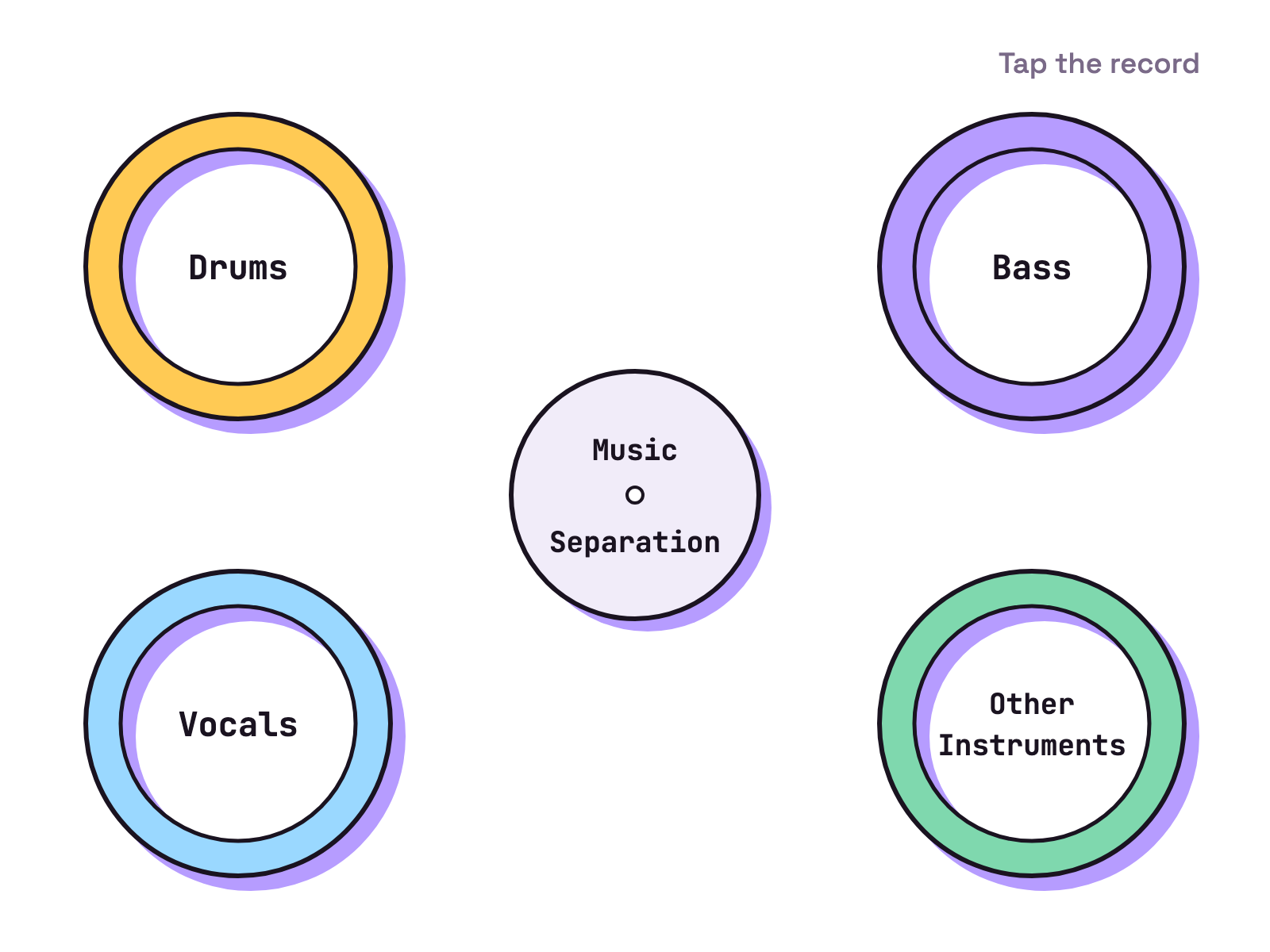
They are a free pack of AI effects that Intel built for Audacity, the free audio editor. One of them, “Music Separation”, splits a song into separate tracks: “Drums, Bass, Vocals, & Other Instruments”. Audacity’s blog says “these effects are completely free and run on your own machine, no internet connection required”.
What do you need?
You need a computer, an older version of Audacity and the effects installer for your system. The download page warns: “The OpenVINO plugins are not yet compatible with the latest Audacity version”. The latest is 4.0.2 today.
- Windows: Audacity 3.7.1, 64 bit. Intel’s release notes say the effects are “only compatible with” that release, and add that 3.7.3 works too. Windows on ARM is out: there, plugins “are not supported”.
- Mac: Audacity 3.7.4 and macOS 12 or later. Audacity calls this first Mac release “a beta of sorts”, and its release page marks it as a pre release.
- Linux: no installer. Intel says it “can be compiled for Linux”. Its Linux guide adds that the Audacity snap supports the effects, with the models fetched by a separate command.
How do you take the vocals out, step by step?
You install the right Audacity, add the effects, then run “OpenVINO Music Separation” on your track.
- Open audacityteam.org, go to Downloads, then “Older versions of Audacity”, and install the version listed above for your system.
- Open the page “Get AI effects for Audacity” and choose “Download for Windows” or “Download for macOS”. Run the installer.
- On Windows, check the folder the installer picks. Intel warns it “may select the wrong location by default” when more than one Audacity is installed. Use the browse button to point it at 3.7.1.
- Restart Audacity and bring your song in.
- Select the track, or the part of it you want.
- Open “Effect > OpenVINO AI Effects > OpenVINO Music Separation”.
- Under “Separation Mode”, choose “2-Stem” for two new tracks, “Instrumental, Vocals”, or “4-Stem” for four: “Drums, Bass, Other Instruments, Vocals”.
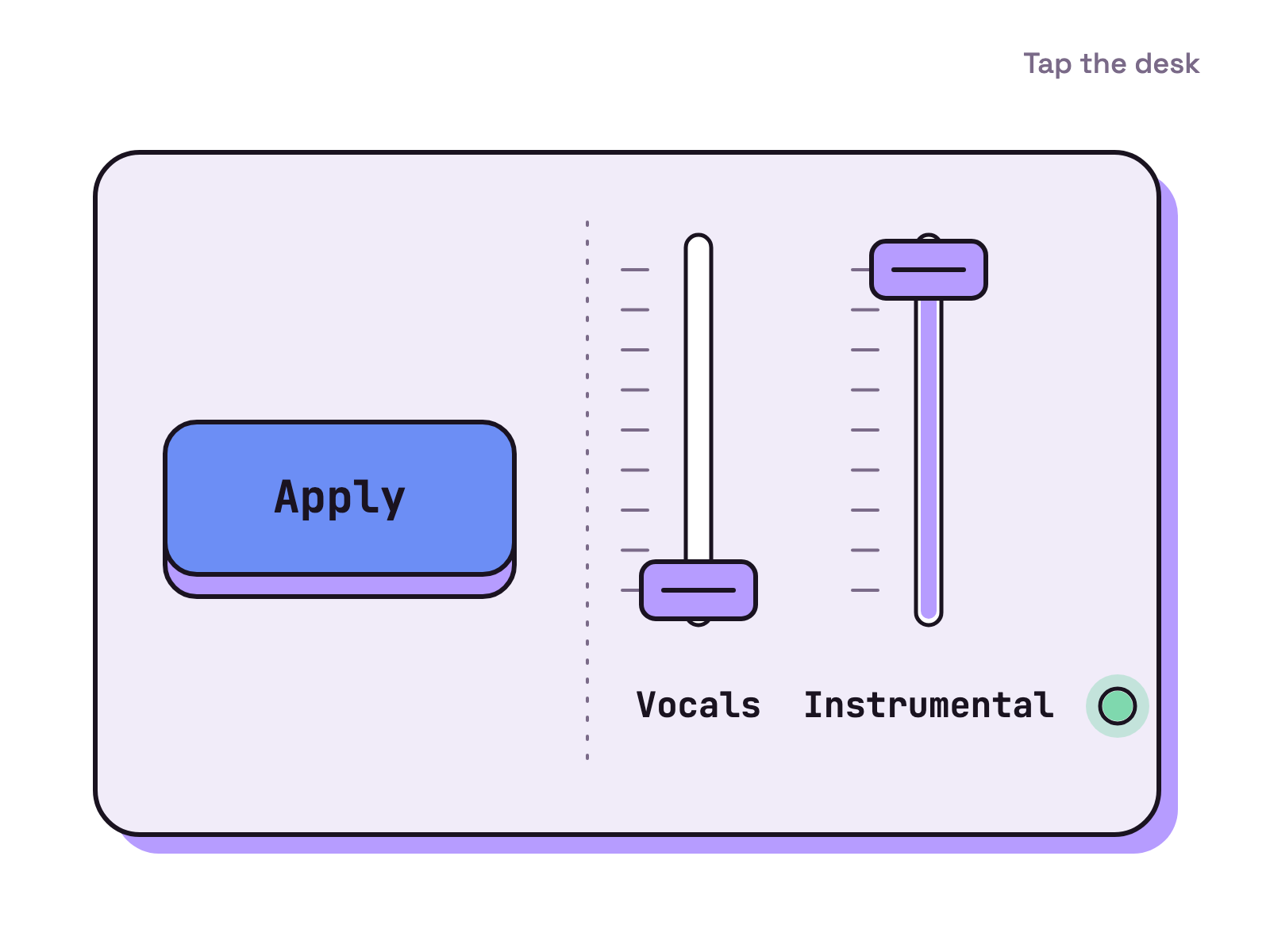
- Click “Apply” and wait. The new tracks show up in the Audacity workspace, each with the name of its part added to the track name.
- Mute the track you do not want, then export.
Which settings make it faster?
“OpenVINO Inference Device” matters most, because it decides which chip does the work. Audacity’s help page puts it this way:
- “CPU always works, but is typically slowest”
- “GPU is typically fastest on high-end computers”
- “NPU can only be used on modern Intel processors, and is similarly fast as GPU”
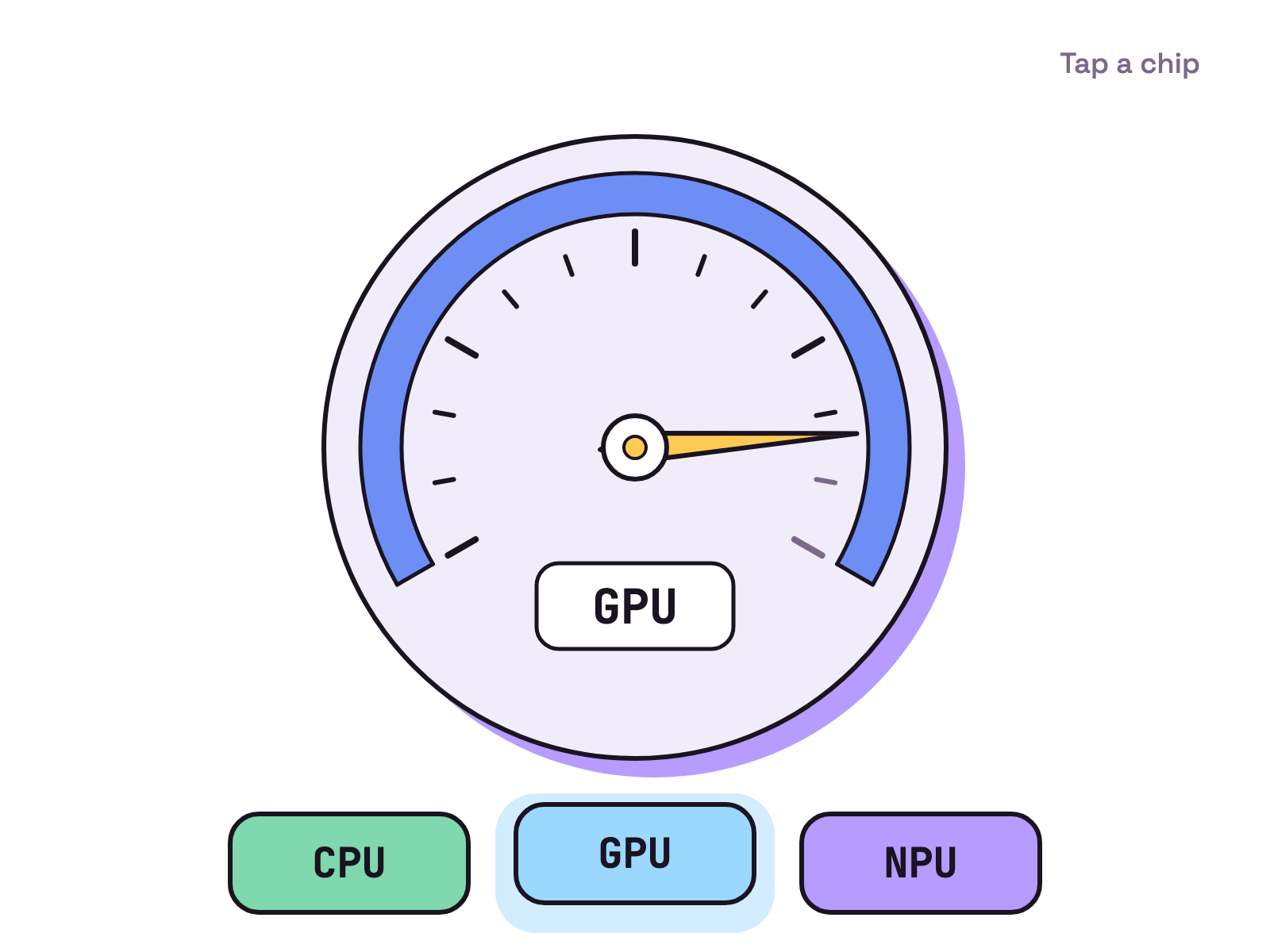
The “Device Details” button shows which chip each name means. The first run is the slow one: loading the model “usually takes 10 to 30 seconds” the first time on a device. After that it is cached and “should run much faster the next time”. Tick “Advanced” to see “Shifts”, and leave it alone at first. A higher value “may produce better results”, but processing time grows in step with it.
Our view: start with “2-Stem” on a short selection, see how long it takes, then run the whole song.
What does it get wrong?
No page promises a clean split, so listen to every new track before you rely on it. The help page goes no further than saying the two stem mode “works well on most songs”. In four stem mode everything that is not drums, bass or vocals lands in one track, which Audacity’s blog calls a combined “anything else” part. It is also heavy work: “This effect takes a lot of computing power, as do all AI effects.”
Is it private?
Yes, by Intel’s description: “These AI features run 100% locally on your PC”. Nothing on the pages says your song is sent anywhere to be processed. You do need the internet once, to download Audacity, the installer and the models.
Privacy is not permission, though. Our view: use it on your own recordings and on music you have the right to edit, and do not share a split of somebody else’s song.
What if it does not work?
Start with the Audacity version, because the effects only fit the older releases.
- The effects are missing from the Effect menu. Check that you opened the older Audacity, not 4.0.2, and that you restarted it after installing.
- It is very slow. Switch “OpenVINO Inference Device” to GPU if you have one, and try a shorter selection.
- It misbehaves on a Mac. The release has one build for Apple silicon and one for Intel, and Audacity notes that “in some cases, the Intel binaries perform better, even on Apple Silicon macs”.
- You want it gone. On Windows, uninstall “OpenVINO AI Plugins for Audacity” under “Settings > Apps > Installed Apps”. For a Mac, the help page “Uninstalling OpenVINO models” lists the folder to remove.
- Still stuck. The download page links a “Help forum” and Intel’s GitHub page, where Intel’s README welcomes you to “submit an issue”.
Also on this blog: How to translate a web page on your own computer with Firefox and Buzz: free, offline Whisper transcription for a long recording. More guides are under AI tools.
Sources
Checked on 27 Nov 2026:
- Get AI effects for Audacity
- Older versions
- Download for Windows, current version 4.0.2
- OpenVINO AI Plugins are now available for macOS, 11 June 2025
- Introducing OpenVINO AI effects for Audacity, 2 January 2024
- Isolating or removing vocals from a song
- Uninstalling OpenVINO models
- AI plugins
- Audacity home page and FAQ
- Intel’s repository and releases, latest
v3.7.1-R4.2, published 20 Dec 2024 - Music Separation guide
- Linux guide
- Mac package repository and releases, latest
v3.7.1-R4.2-beta-3, published 19 Jun 2025, marked pre release
This guide is independent. It is not made, checked or paid for by Intel or Audacity.
FAQ
Is it free?
Yes. Audacity's blog says "these effects are completely free", and Audacity itself is free.
Does it work with the newest Audacity?
Not yet. Install the older version named for your system first.
Does the song leave your computer?
No, by Intel's account: the effects "run 100% locally on your PC".
Does it work on a Mac?
Yes, as a release that Audacity calls "a beta of sorts".