How to translate a web page on your own computer with Firefox
Firefox, a free browser, translates foreign web pages on your device. The steps, the offline setting, the limits and the fixes when a page will not translate.
Firefox, a free browser, has a translator built in that turns a foreign web page into your language on your own computer. Click the translate button in the address bar and press “Translate”. Download a language in Settings first and it works offline. Firefox’s list names 52 languages today. Checked 27 Nov 2026.
This guide is on the blog of Munder Difflin, which is free and open source: a desktop app that runs a team of AI agents for all kinds of knowledge work, coding included, on your own computer. You do not need it for this guide; its install guide covers setup.
Checked on 27 Nov 2026 against Firefox’s website, release notes and source documentation, and the interface text in Mozilla’s repository. Names in quotes are theirs. Mozilla’s help site did not open that day, so check the labels against your own Firefox.
What is Firefox translation?
It is a translator built into the Firefox browser that turns a foreign web page into your language on your own device. Mozilla describes it as “machine learning models that are downloaded and run locally on the user’s device” (source documentation). Settings files it under small AI models “that download to your device if you use the feature” (Settings text).
What do you need?
You need Firefox, a page in a language on the list, and an internet connection the first time you use that language. Firefox “works on Windows, Mac and Linux devices, and is also available for Android and iOS” (Firefox FAQ).
- Computer: translation arrived in Firefox 118, in September 2023.
- Android: Firefox for Android 127, June 2024, as a gradual roll out.
- iPhone: the Firefox for iOS 146 notes, December 2025, list translation of full web pages.
- An older computer may be refused: the source documentation says the feature needs a processor with SSE4.1.
How do you translate a page, step by step?
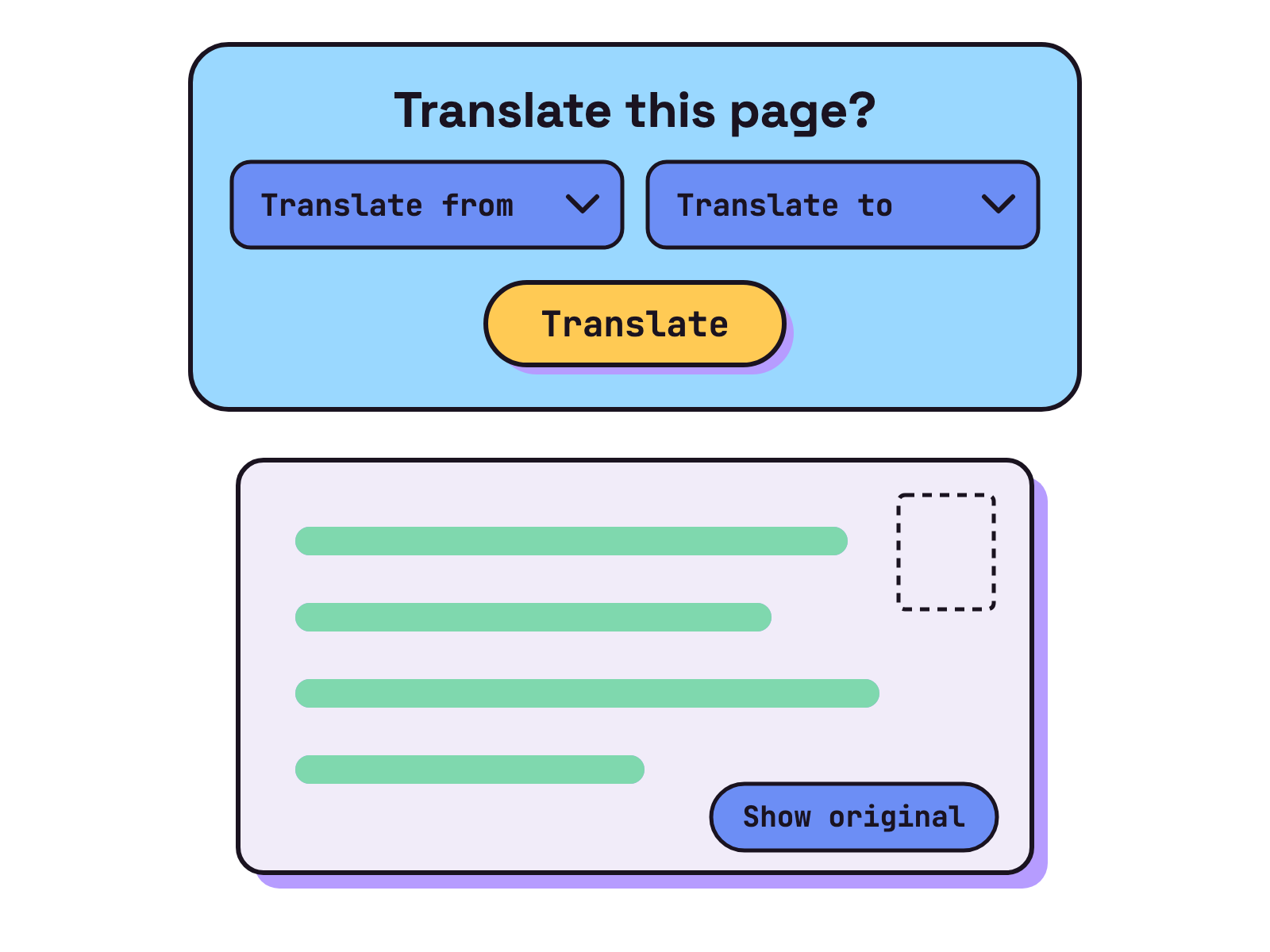
You open the page, click the translate button in the address bar and press “Translate”.
- Open the foreign page in Firefox.
- Look at the address bar. When Firefox can translate the page, a translate button appears there (overview). Its tooltip reads “Translate this page”.
- Click it. A panel opens with the heading “Translate this page?” (interface text).
- Check the two boxes, “Translate from” and “Translate to”.
- Press “Translate”. The first time you use a language, wait while Firefox fetches it.
- Scroll slowly on a long page. Firefox translates the part near your view first and skips the rest “unless you scroll to it” (Firefox 140 notes).
- To see the real wording, open the panel again and press “Show original”.
No button in the address bar? Open the main menu and choose “Translate Page…” (menu text).
On Android the names match: “Translate page” in the menu, then “Translate this page?”, “Translate” and “Show original” (Android interface text).
Which settings are worth changing?
The offline download matters most, because it lets you translate with no connection at all.
- In Settings, find “Translations” and open “More translation settings” (Settings text).
- Under “Speed up translation” it says: “Download complete languages for faster translations and to translate offline”. Use “Download languages” and “Select language”. Each choice shows its size in MB.
- To stop being asked on one site, open the panel’s settings menu and pick “Never translate this site”.
- For one sentence, select the text, right click and choose “Translate Selection…”, or “Translate Selection to” and your language (Firefox 128 notes). The small panel has “Copy” and “Translate full page”.
- For your own text, open the main menu, then More Tools, then “Translate…” (Firefox 151 notes). The box there reads “Add text to translate”.
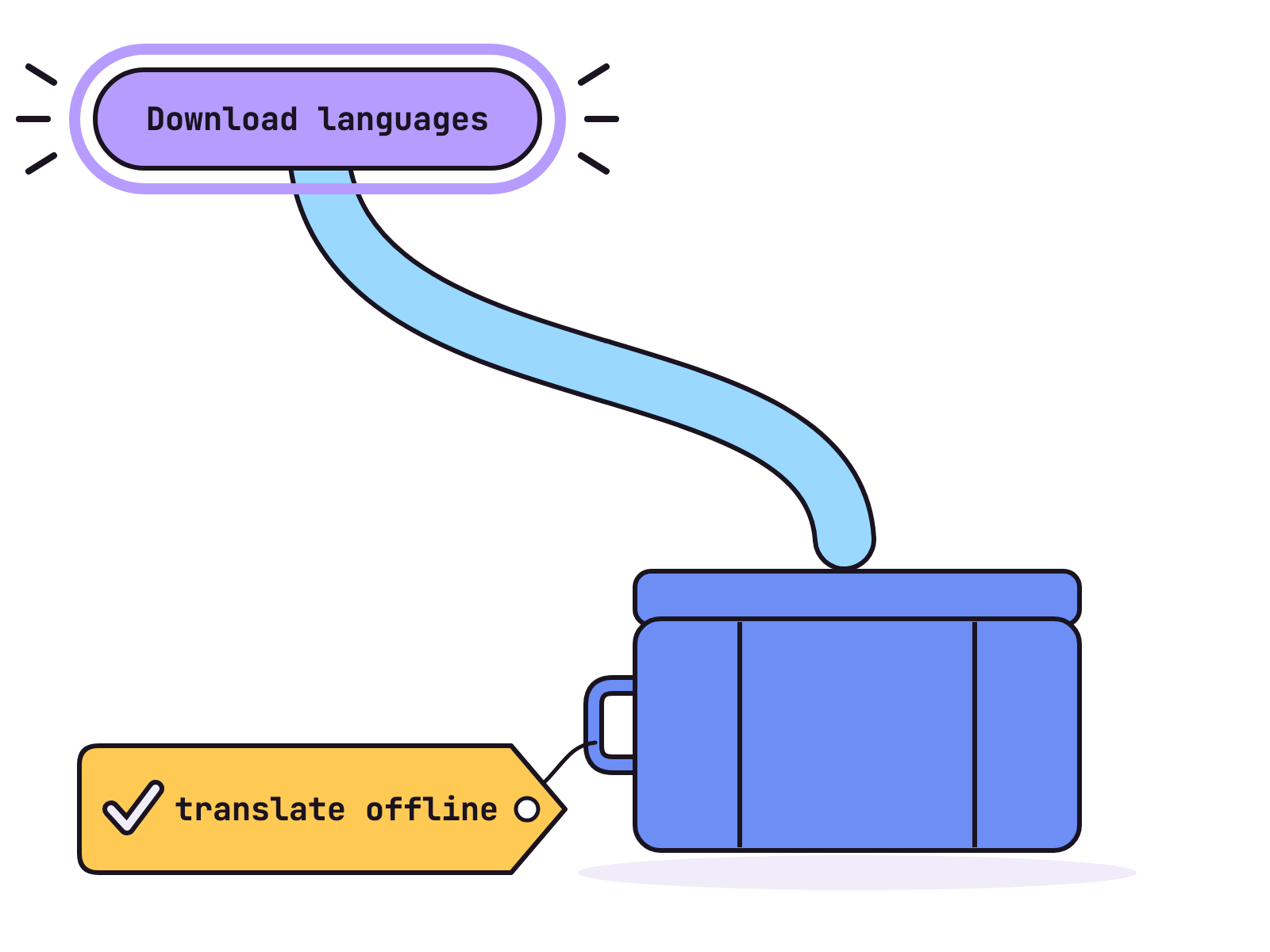
Our view: download the languages you need before a trip.
What does it get wrong?
It is machine translation, so it can choose the wrong word and, at times, a word that does not exist. The Firefox 135 notes describe a fix that will “reduce the likelihood” that models “invent new” words. Reduced is not gone.
- The list is limited. For a missing language you see “Sorry, we don’t support translations from this language yet”.
- Some pairs go through English. With no direct model, Firefox translates into English first and then into your language (overview).
- Words inside a picture are a different feature. On a computer, with Google as your default search engine, Firefox offers “Search Image with Google Lens” (Firefox 144 notes). That is Google’s service, not the local translator.
Our view: use it to understand a listing or a form. For a contract or anything you must sign, ask a person who reads the language.
Is it private?
Yes, as far as the translating goes, by Mozilla’s own words. The Firefox 118 notes say “the text being translated does not leave your machine”, and Firefox’s page adds “Mozilla doesn’t record what webpages you translate”.
Two limits apply. The page still comes from its website, like any page you open. And the Google Lens image feature is not part of this promise.
Also on this blog, about privacy: How to ask AI a private question with Duck.ai, free, no account.
What if it does not work?
Start with the language, because the first two messages below are about a language that is missing or will not load.
- “Couldn’t load languages”. The panel says “Check your internet connection and try again”. Reconnect and press “Try again”.
- “Sorry, we don’t support translations from this language yet”. If Firefox guessed the language wrong, press “Change source language”.
- “Translation isn’t available on this device”. Firefox’s advice is “Try switching to a different device” (translation page text).
- “Translations aren’t available for your organization”. Ask your administrator.
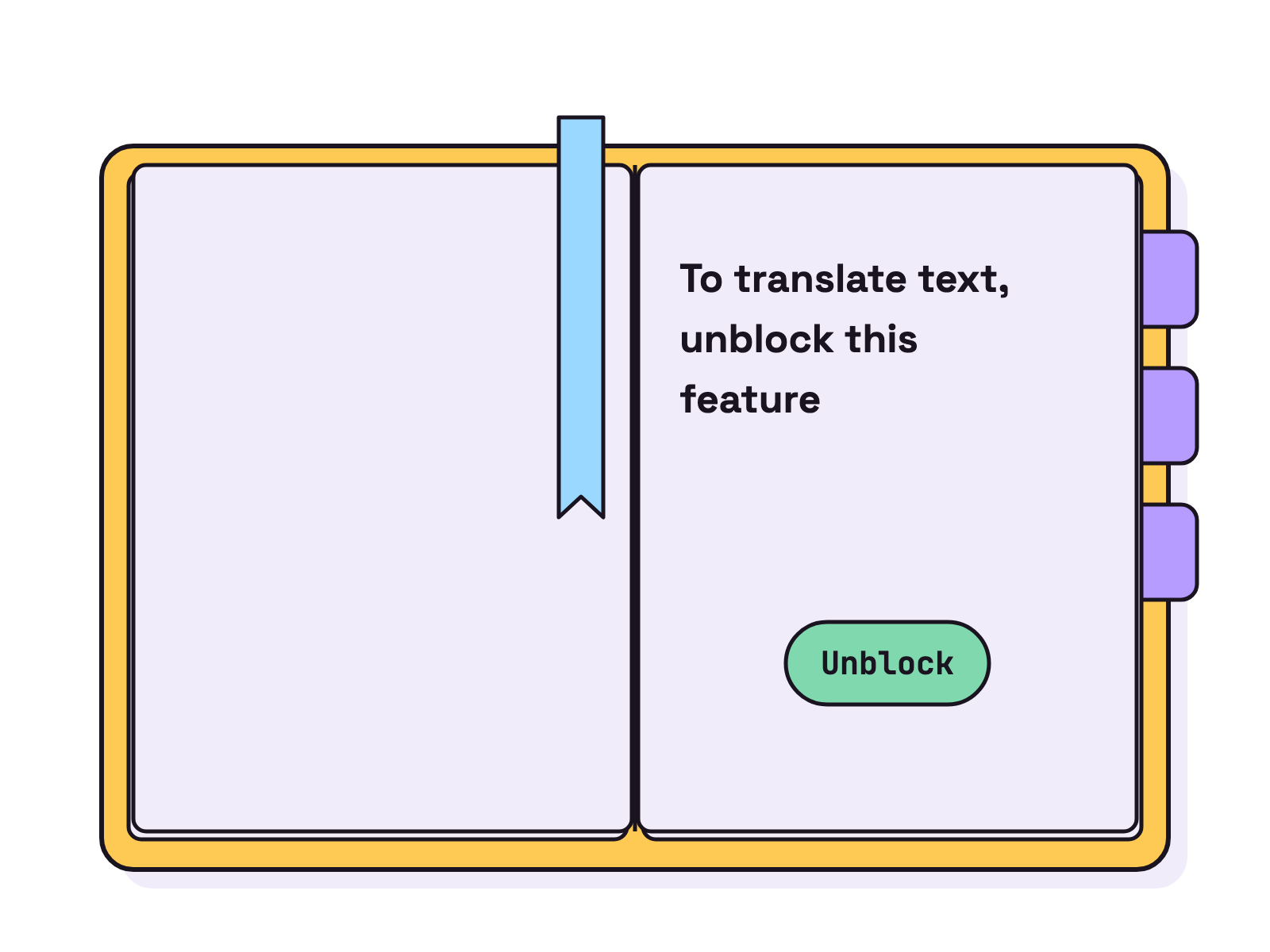
- “To translate text, unblock this feature”. You blocked it under AI controls. Press “Unblock”.
- Part of the page stayed foreign. Scroll to it and wait a moment.
Also on this blog: How to remove vocals from a song with Audacity’s free AI effects. More guides like these are on the AI tools page.
Sources
Checked on 27 Nov 2026:
- Translate a webpage with Firefox, firefox.com
- Firefox FAQ
- Firefox release notes: 118, 128, 135, 140, 144, 151
- Firefox for Android release notes: 127; Firefox for iOS release notes: 146
- Firefox Source Docs: Translations and Overview of Translations
- mozilla/translations, the README of Mozilla’s translations repository
- Firefox interface text in Mozilla’s repository: translation panel, Settings, main menu, translation page, Firefox for Android
This guide is independent. It is not made, checked or paid for by Mozilla.
FAQ
Is it free?
Yes. Firefox's own FAQ says "The Firefox Browser is free" and "No hidden costs or anything". Translation is part of the browser.
Is the page sent to a server to be translated?
No, by Mozilla's account: "translation is done locally in Firefox, so that the text being translated does not leave your machine".
How many languages does it have?
Firefox's list on firefox.com names 52 as of 27 Nov 2026, English included, and says more are in development.
Does it work offline?
Yes, once you download the language in Settings while you are still online.