Buzz: free, offline Whisper transcription for a long recording
Buzz is a free, open source app that turns audio and video into text on your own computer. Setup, model choice, speaker labels, limits and fixes.
Buzz is a free and open source app that turns a recording into text on your own computer, using OpenAI’s Whisper. Import the audio or video file, pick the language and a model, click “Run”, then export the text. It can also label who is speaking. Checked 26 Nov 2026.
This guide is on the blog of Munder Difflin, which is free and open source: a desktop app that runs a team of AI agents for all kinds of knowledge work, coding included, on your own computer. You do not need it for this guide; its install guide covers setup.
Checked on 26 Nov 2026 against the project README, the latest release and the documentation, at version 1.4.5. Names in quotes are the ones those pages use.
What is Buzz?
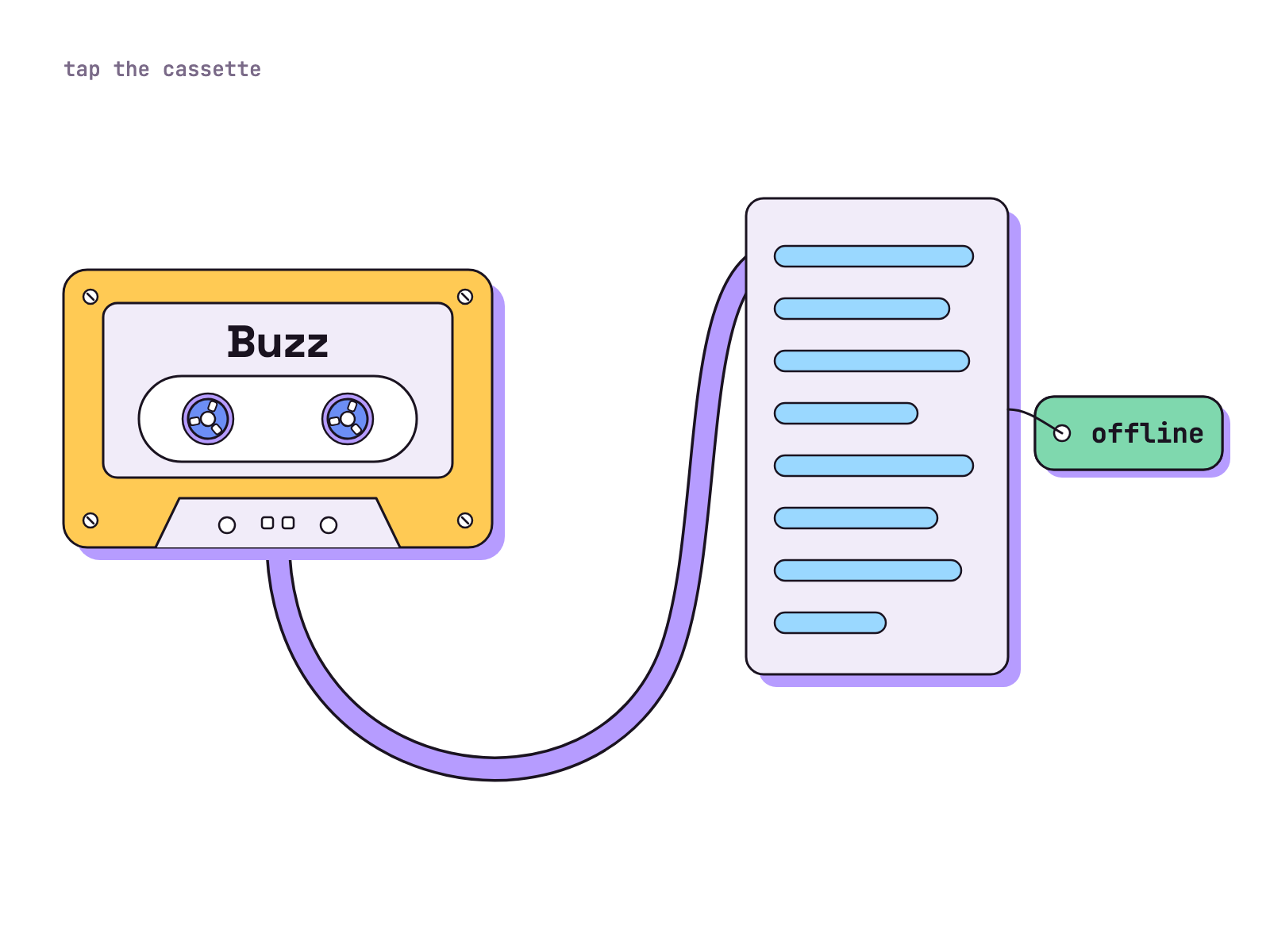
Buzz is a free and open source app for Mac, Windows and Linux that turns recorded speech into text on your own computer. The README sums it up: “Transcribe and translate audio offline on your personal computer.” It is “Powered by OpenAI’s Whisper”, a speech model.
What do you need?
You need a computer, the recording as an audio or video file, and an internet connection for the first setup.
- Mac: release 1.4.5 has one file for Apple silicon,
Buzz-1.4.5-mac-ARM64.dmg, and one for Intel,Buzz-1.4.5-mac-X64.dmg. The README warns: “Buzz now requires Apple silicon. The last version to support Intel Macs is 1.4.5.” - Windows: “App is not signed, you will get a warning when you install it.” Select “More info”, then “Run anyway”. On the GitHub release page, “download all three Windows files”.
- Linux: “Buzz is available as a Flatpak, Snap or Appimage.”
How do you turn a recording into text, step by step?
You import the file, choose a language and a model, click “Run”, then open and export the transcript.
- Install Buzz from the download link in the README and open it.
- Click “Import Media File” on the “File” menu, then “Choose an audio or video file.”
- Leave the task on “Transcribe” and pick the language yourself. The docs recommend it, because “automatic language detection may result in unexpected results”.
- Pick the model settings (see below). A model downloads the first time you use it.
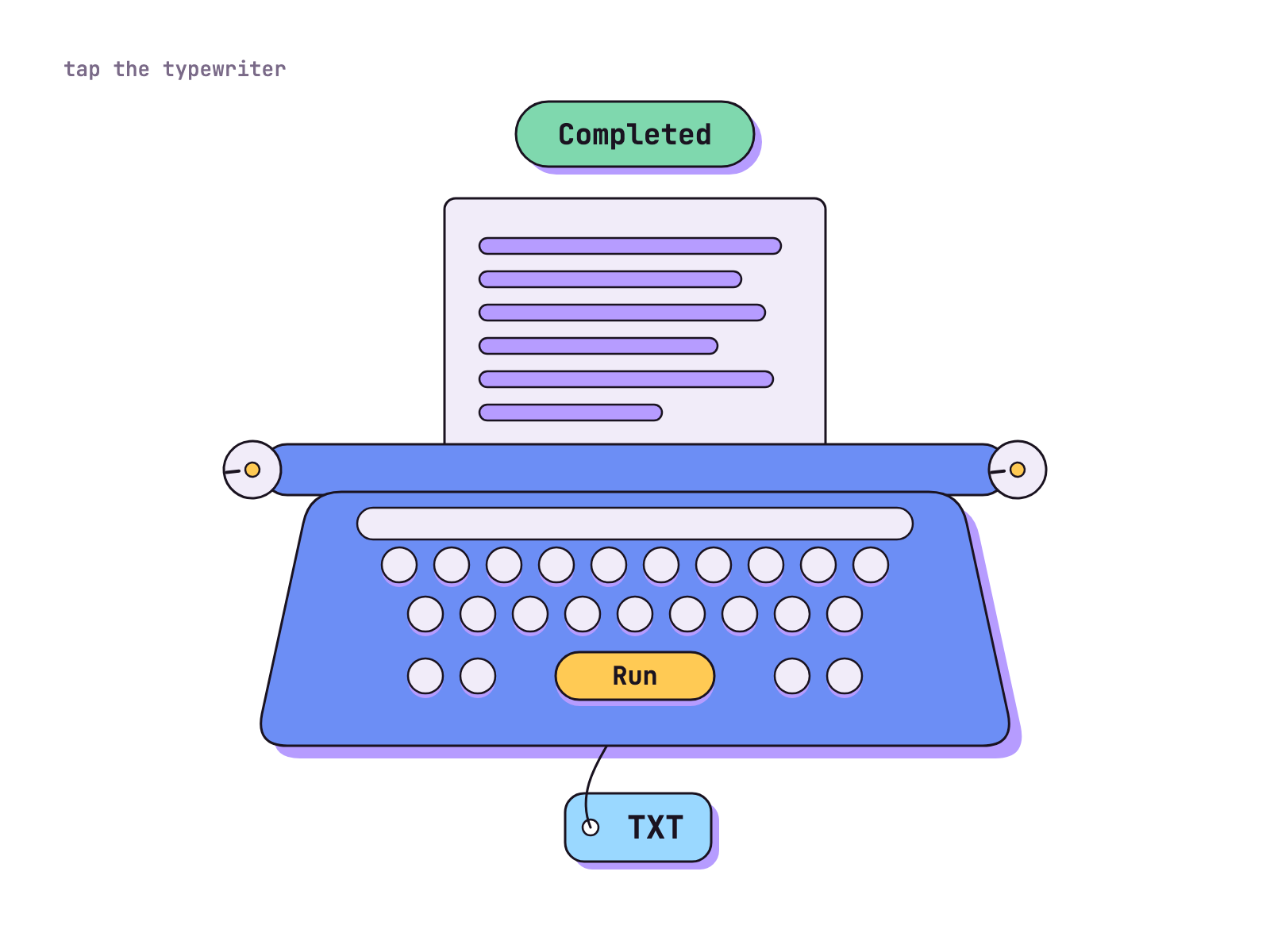
- “Click Run.” Wait until the status shows “Completed”.
- Double click the row to open the transcript, then use the export button. TXT is plain text; SRT and VTT are subtitle files.
How do you label who is speaking?
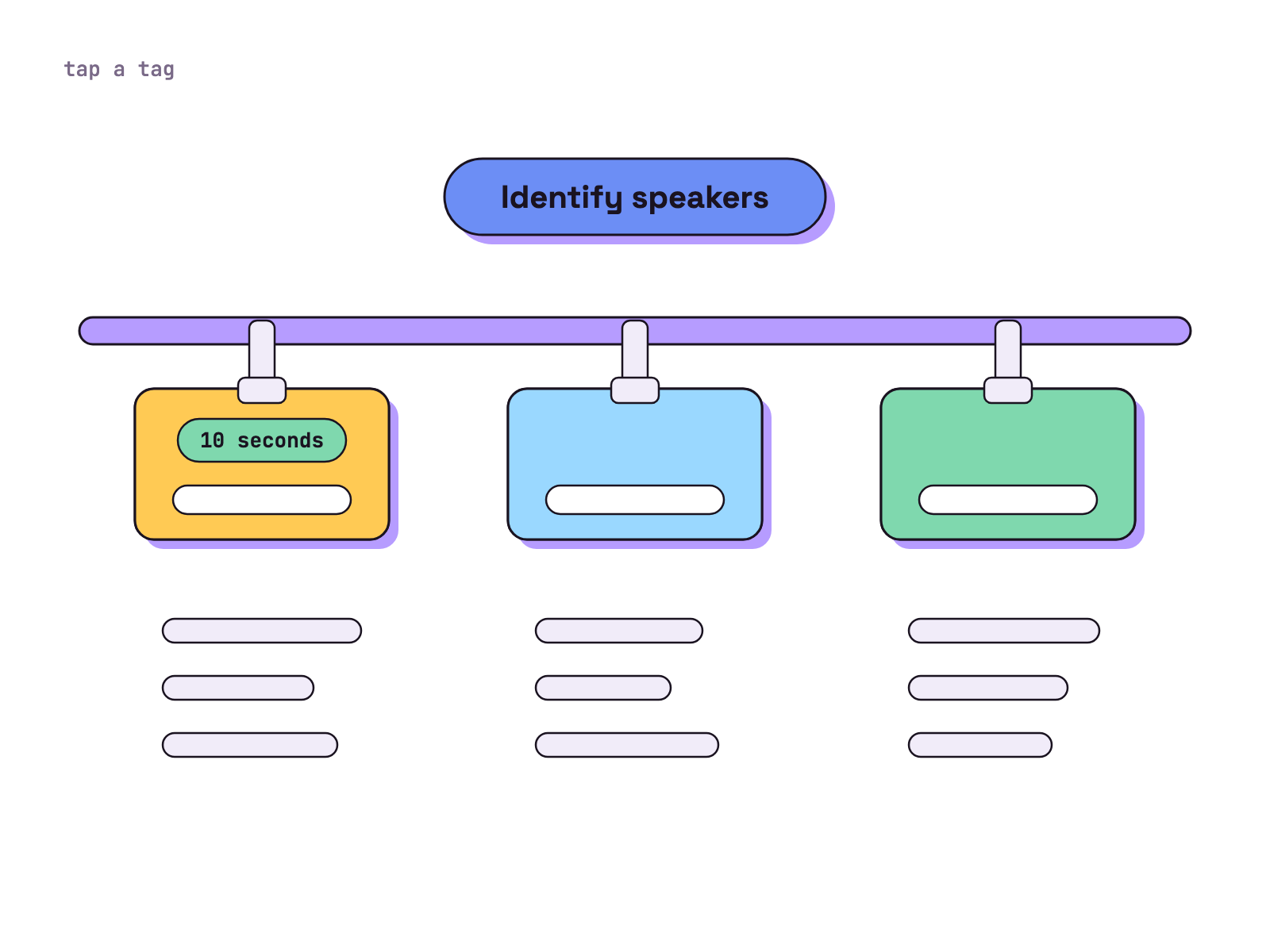
You open a finished transcript and click “Identify speakers”.
- Keep the recording where it was. Labels are added only “If the audio file is still present on the system”.
- Double click the transcript, then click “Identify speakers”.
- With the “MSDD” model, leave the number of speakers on “Auto”, or set it when you know it.
- Buzz gives each speaker’s sentences a label. “You can preview 10 seconds of a random sentence from an identified speaker” and rename the label “to the speaker’s real name”.
One limit: “Speaker identification is not available on Intel macOS.”
Which model should you pick?
Pick Whisper.cpp unless your computer has a strong Nvidia graphics card.
- No Nvidia card, or a Mac: Whisper.cpp. It “will use any brand of GPU” and “can also run on CPU only”.
- An Nvidia card “with at least 6GB of VRAM”: Faster Whisper.
- Size: “Smaller models will work faster but will have more inaccuracies.” Larger ones are more accurate and slower.
- Among the large models, “Turbo” aims for “a good balance between speed and accuracy”. “Large-V3” has “the best accuracy in many cases” but “some times can hallucinate or invent words that were never in the audio”.
- “Models with .En in their names are for English and will not work for other languages.”
Our view: test two sizes on a short piece of your own audio before you run the whole file.
What does it get wrong?
It mishears words, and it can put a sentence under the wrong speaker.
- Names and rare words. Type “commonly misspelled words” into the “Initial prompt”, behind the “Advanced…” button at import.
- Noisy audio. Tick “Extract speech” at import “to improve accuracy”.
- Speaker labels. Buzz “cannot guarantee that every sentence is assigned to the correct person”. Recordings with “overlapping speech, large differences in microphone distance, or very little speech from one participant can still require manual correction.”
Our view: play the audio beside the text before you rely on any line, and record only people who agreed to it.
Is it private?
Yes by default, because the transcription runs on your own computer, with four things to know.
- The internet is used to fetch models: “Network permission is used to download transcription model files.”
- Buzz can also use the “OpenAI API to do speech recognition on a remote server”. That needs an API key you add in “Preferences”. With it on, the audio leaves your computer.
- The “AI Summary” plugin also sends the transcript to a service you set up.
- Usage statistics. The Preferences page says “Buzz collects basic OS name and architecture usage statistics”.
What if it does not work?
Start with a smaller model, then check the model download.
- It is slow. The FAQ says to try “a lower Whisper model size or using a Whisper.cpp model”.
- It crashes. “If a model download was incomplete or corrupted, Buzz may crash.” Delete the model under “Help”, “Preferences”, “Models” and download it again.
- The computer has no internet. Download the models on another computer, then copy the models folder across. The “Show file location” button opens that folder.
- It still crashes on a very old computer. “Buzz needs AVX2 support in your CPU, very old computers are not supported.”
Also on this blog: How to talk instead of typing with Handy, free speech to text and How to ask AI a private question with Duck.ai, free, no account. More guides are under AI tools.
Sources
Checked on 26 Nov 2026:
- Buzz README
- Latest release, v1.4.5, published 23 Aug 2026
- Introduction
- Installation
- File Import
- Speaker identification
- Transcription Viewer
- Live Recording
- FAQ
- Preferences
- Plugins
- Buzz Captions, the author’s site
- MIT licence
- App description file
This guide is independent. It is not made, checked or paid for by the Buzz project.
FAQ
Is Buzz free?
Yes. The author's site lists it as "Free and open-source on GitHub".
Does Buzz work offline?
Yes, once a model is on your disk. The first model download needs the internet.
Does Buzz run on an Intel Mac?
Version 1.4.5 does, but it is the last one that will, and speaker labels do not work there.
Can Buzz tell who is speaking?
Yes. "Identify speakers" labels each sentence, and you can rename the labels.