How to run a free AI chat offline on your laptop with Jan
Jan is a free, open source app that runs an AI chat on your own computer. What you need, the steps, how to pick a model, the limits and the fixes.
Jan is a free, open source app that runs an AI chat on your own computer. With a local model, the default, Jan’s quickstart says it runs “private, offline”. Install it, let it download its default model once while online, then pick more models by the “Fits” label in the Hub. Checked 28 Nov 2026.
This guide is on the blog of Munder Difflin, which is free and open source: a desktop app that runs a team of AI agents for all kinds of knowledge work, coding included, on your own computer. You do not need it for this guide; its install guide covers setup.
Checked on 28 Nov 2026 against Jan’s website, documentation and repository. Names in quotes are theirs. Labels come from the documentation, so check them against your own app.
What is Jan?
Jan is a free desktop app that runs an AI chat on your own computer. Its docs describe “built-in foundation models” and “an application ecosystem that runs entirely on your hardware”. It is open source and made by Menlo Research.
What do you need?
You need a recent computer with enough memory and free disk, plus an internet connection for the first download.
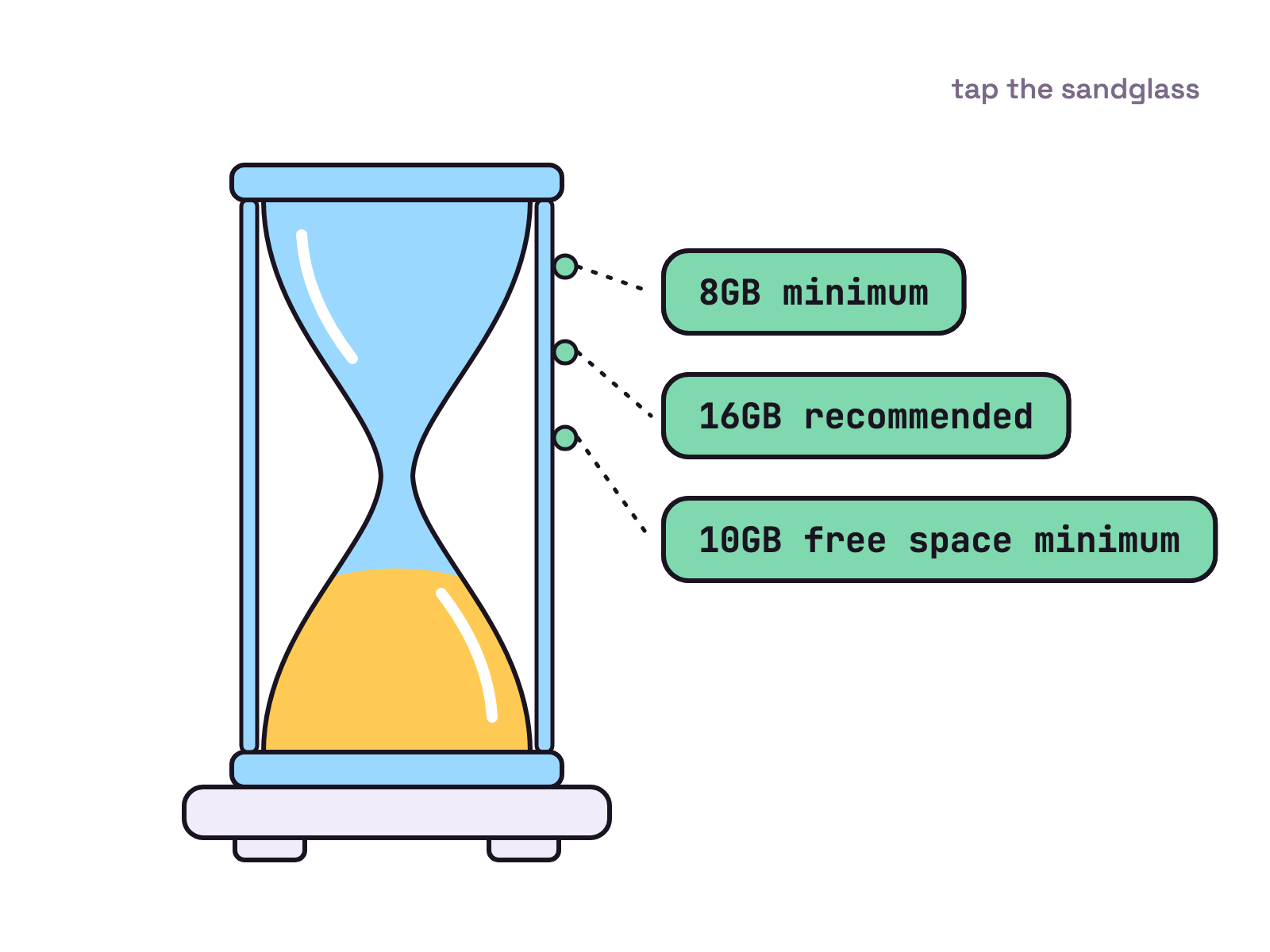
- Windows: Windows 10 or higher, “8GB minimum (16GB recommended)” of memory and “10GB free space minimum” (Windows page). The processor must support AVX2 (Intel from 2013, AMD from 2015), or be an ARM64 chip.
- Mac: “a Mac with Apple Silicon (M1 or newer)” on macOS 13.6 or higher, with “10GB+ free space” (Mac page). The page warns: “Intel-based Macs are no longer supported.”
- Linux: the same memory and disk figures (Linux page). Jan’s install steps there are terminal commands.
How do you set up Jan, step by step?
You download it, install it and let it fetch its default model once.
- Open jan.ai and press “Download Jan”. Pick your system.
- On a Mac, open the installer, “Drag Jan to Applications” and launch Jan. On Windows, run the downloaded file, wait for it to complete and launch Jan.
- At first launch, choose your tracking preference. The privacy page promises “Zero data collection until you say so”.
- Wait. The docs say “Jan automatically downloads its default foundation model on first launch”. Stay online until it completes.
- Type a question. The quickstart says “Type your message and start chatting.”
- Test it at home, before a trip. Turn the wifi off and ask one more question.
How do you pick a model that fits?
You read the fit label in the Hub before you download anything.
- Open the “Hub” from the left sidebar (quickstart).
- Each model carries one of three labels “based on your hardware”: “Fits”, “May be slow” or “Won’t fit” (Model Management).
- Sizes are grouped as “Small”, “Balanced” or “Large”. The default download has a “Recommended” tag.
- Click “Download”. Then choose the model “from the model selector in any chat”.
- A rule from the troubleshooting page, read 28 Nov 2026: “Choose models that use less than 80% of your available RAM”. With 8GB, “Use models under 6GB”. With 16GB, “Use models under 13GB”.
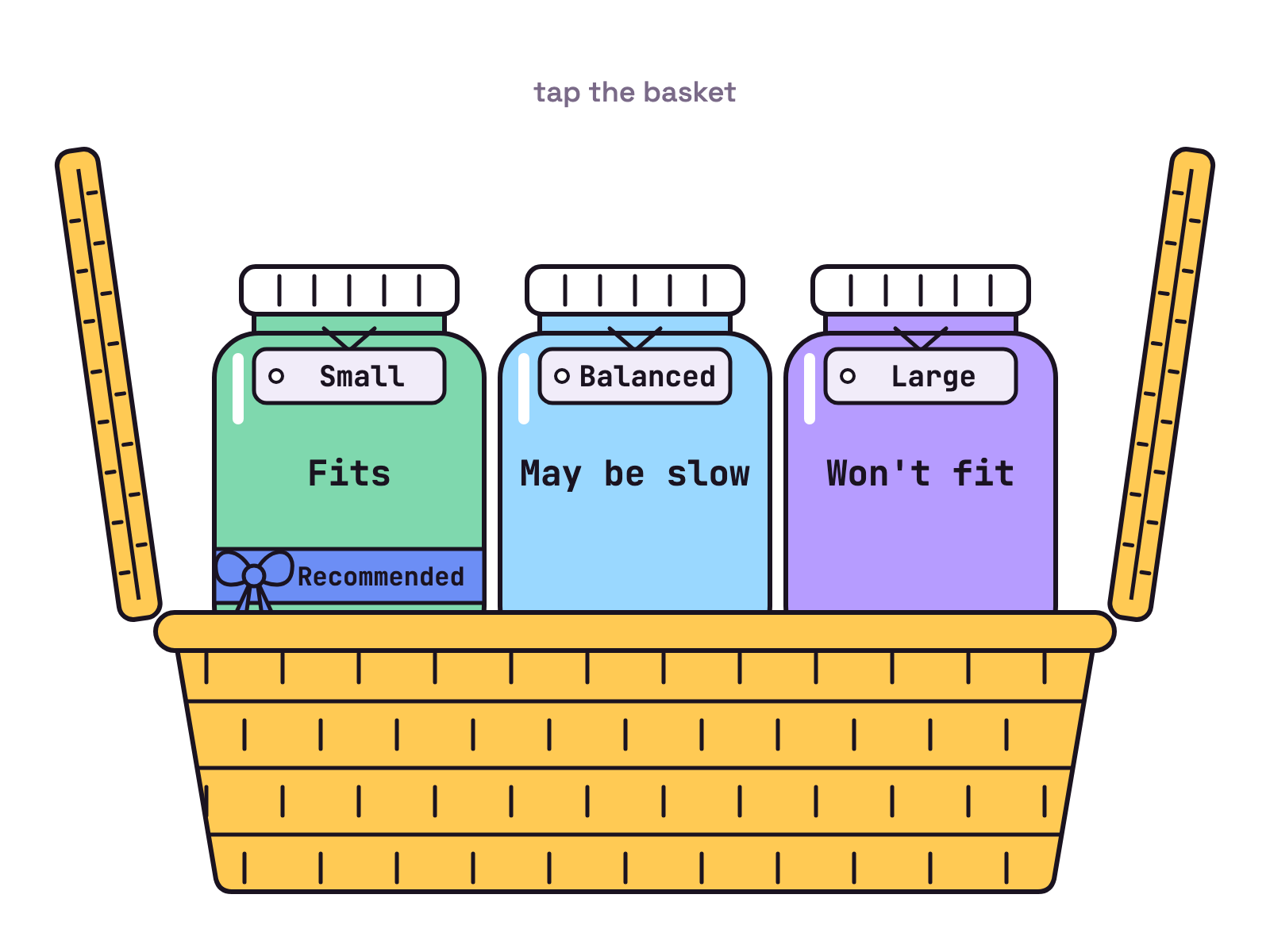
Our view: start with a model marked “Fits”. One marked “May be slow” will test your patience on an older laptop.
What does it get wrong?
A small local model reasons less well than the large online ones. Jan’s page for its own 4B model lists the limit in plain words: “4B parameters limit complex multi-step reasoning compared to larger models”.
- It can be slow. The troubleshooting page has a section named “Models Running Slowly”.
- Offline, it has no fresh facts. Web search is how a model “can look up current information”, and a search needs a connection.
Our view: use it for drafts, rewording and summaries of your own notes. Check any fact it gives you.
Is it private?
Yes for local models, by Jan’s own account, and no for the two online paths. The quickstart says local models “run entirely on your machine”, “private, offline, no API key”, and adds: “This is the default.”
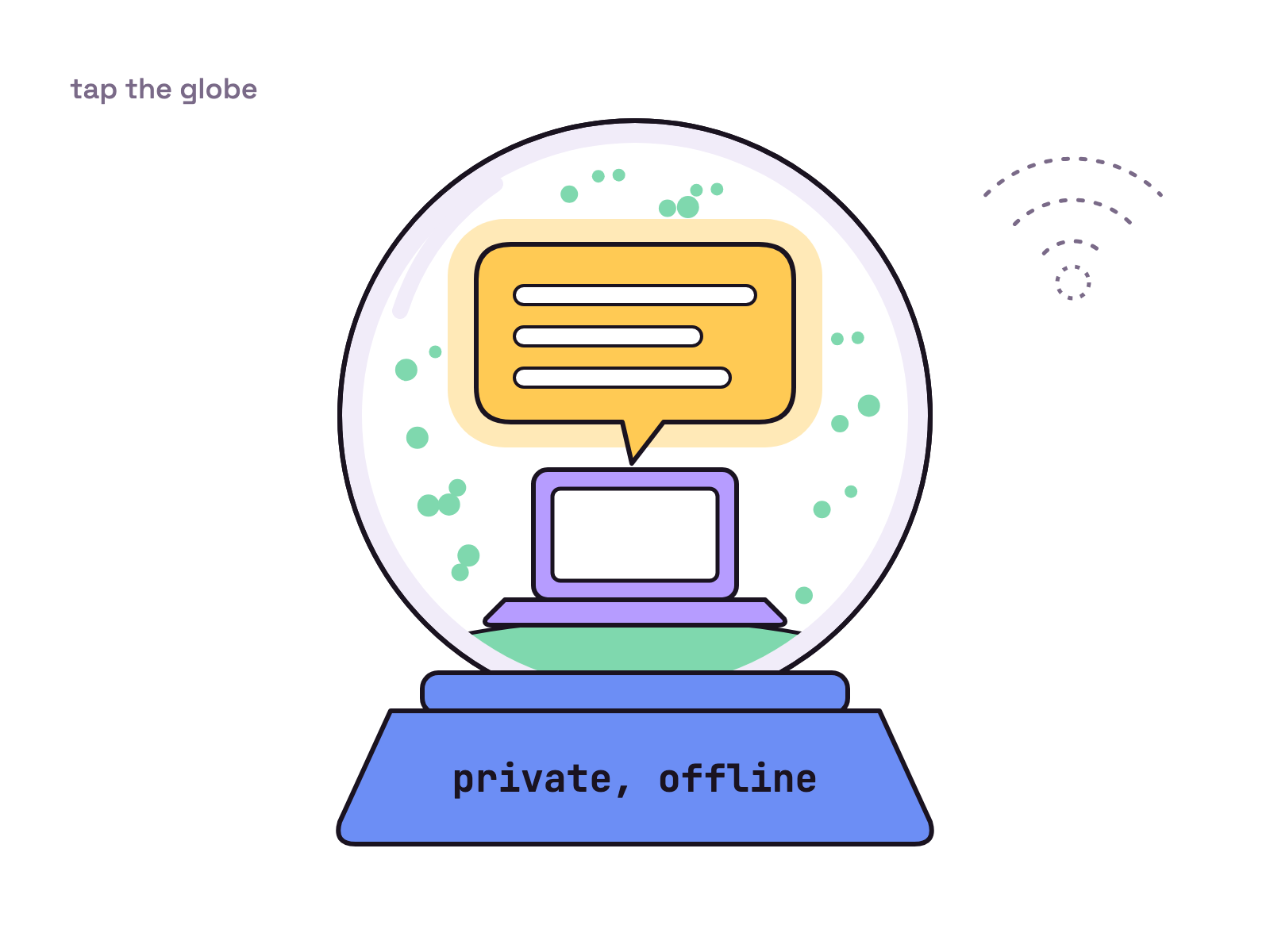
- Web search is “on by default”, and a search goes to a search provider. Switch it off for a chat with the globe icon in the chat box, which shows “Web Search (Active)” while on, or in “Settings > Web Search” (Web Search page).
- Cloud models “need to see your messages to work” (privacy page). They run only after you add a provider and a key under “Settings > Model Providers” (quickstart).
- Your chats are stored on your disk. The install pages say “Jan stores all your data locally” and “Nothing is sent to the cloud”.
- Usage counts, if you allow them, are “tied to a random ID”. The privacy page lists “No prompt logging”.
Our view: for private notes, use a local model, switch web search off and add no provider key.
Also on this blog, about privacy: How to ask AI a private question with Duck.ai, free, no account.
What if it does not work?
Start with the model size, because “Out of memory” comes first in the troubleshooting page list of “The most common causes” when a model will not load.
- The model fails to load, or stops with an out of memory error. The fix in the docs: “Use a smaller or more quantized model”.
- Answers crawl. The docs say “Close other memory-intensive applications”. With a graphics card, open “Settings > Hardware > GPUs” and turn its switch on (Windows page).
- A banner says the model ran out of context size. Click “Increase Context Size”.
- The disk is full. Open “Settings > Model Providers > Llama.cpp” and click the trash icon next to a model you no longer use (engine page).
- You have an Intel Mac. Since version 0.8.5, local models “do not run on them at all” (Mac page).
Also on this blog: How to remove a photo background free with BgSub, in your browser. More guides like these are on the AI tools page.
Sources
Checked on 28 Nov 2026:
- Jan home page and download page
- Jan Docs: Overview, QuickStart, Privacy, Model Management, Web Search, Troubleshooting, Local AI Engine (llama.cpp)
- Jan Docs installation pages: Mac, Windows, Linux
- Jan Docs model page: Jan v3 4B
- janhq/jan, the README of Jan’s repository, and its LICENSE file
This guide is independent. It is not made, checked or paid for by Menlo Research.
FAQ
Is Jan free?
Yes. Jan's home page says "Free & Open source", and the docs call it "Apache 2.0 licensed".
Does it work with no internet?
Yes, with a local model, once the first download is done. The docs say local models run "entirely on your machine".
Do you need an account?
No. The docs say you can "chat with AI in minutes", with "no account needed".
Is a local model as good as the big online ones?
No. Jan's page for one of its own small models says its size limits "complex multi-step reasoning compared to larger models".