How to Add a GitHub Copilot CLI Agent to Your Floor
A step-by-step v0.3.3 walkthrough: install GitHub Copilot CLI (or let the harness install it for you), hire a Copilot worker, pick a model, and know exactly what print mode can and can't do.
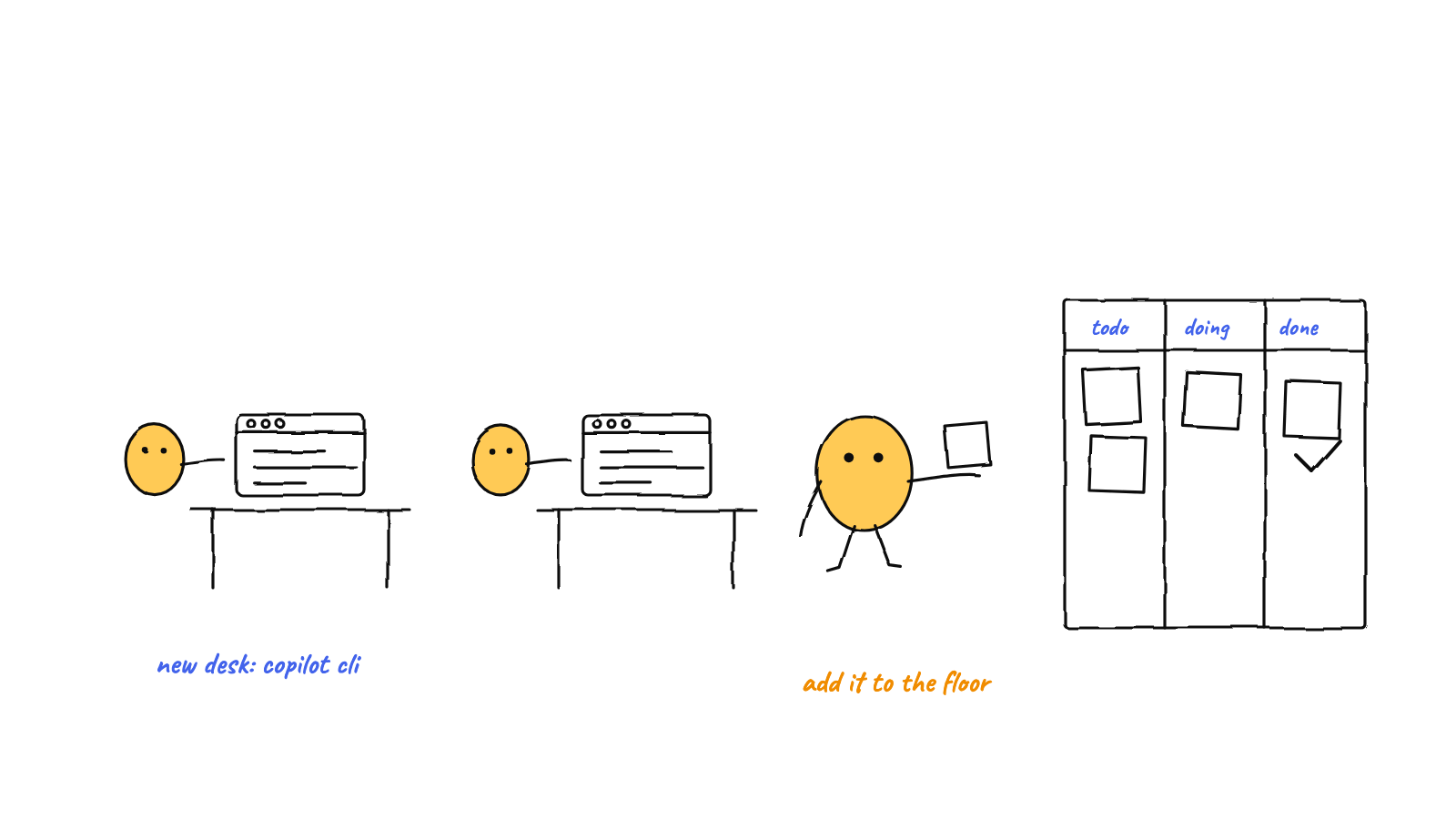
As of v0.3.3, GitHub Copilot CLI is a first-class agent engine in Munder Difflin — the project's first community-contributed provider (PR #101 by @anxkhn). Install @github/copilot (or let the harness's missing-CLI installer do it), hit Add Agent, pick the Copilot engine, choose a model (Claude Sonnet 4.5 default, GPT-5.4, or auto), and it authenticates with your existing Copilot login — no new keys. One honest caveat: Copilot runs in print mode (copilot -p), which exits per turn, so its workers can't drain inbox mail — routed mail bounces to the orchestrator instead of dropping. Use Copilot workers for dispatched, self-contained tasks.
If you already pay for GitHub Copilot, you have an agent engine sitting in your subscription that most people only ever use as autocomplete. Copilot CLI is the terminal version — a real coding agent you run with copilot — and since v0.3.3, Munder Difflin can hire it onto the floor next to your Claude Code, Codex, and OpenCode workers.
This guide walks the whole path: install, hire, model choice, what auto-mode changes, and the one behavioral caveat you should understand before you assign work.
Step 0: have the floor running
You need Munder Difflin itself first — if you don’t, the install guide covers it in a few minutes. Everything below assumes you’re looking at the office floor with Michael seated in his office.
Step 1: install Copilot CLI (or don’t — the harness will offer)
The engine drives the official npm package:
npm install -g @github/copilotThen log in once with your GitHub account if you haven’t (copilot walks you through it on first run). That’s the entire auth story: the engine uses your existing GitHub Copilot login, no new keys, nothing to paste into Settings → AI Engines.
You can also skip this step entirely. Munder Difflin has a self-healing installer for missing engine CLIs: if you pick Copilot in Add Agent and the copilot binary isn’t on your PATH, the harness offers the official npm install -g @github/copilot, runs it in the terminal, then auto restarts-and-continues into the freshly installed binary. No dead end, no manual retry.
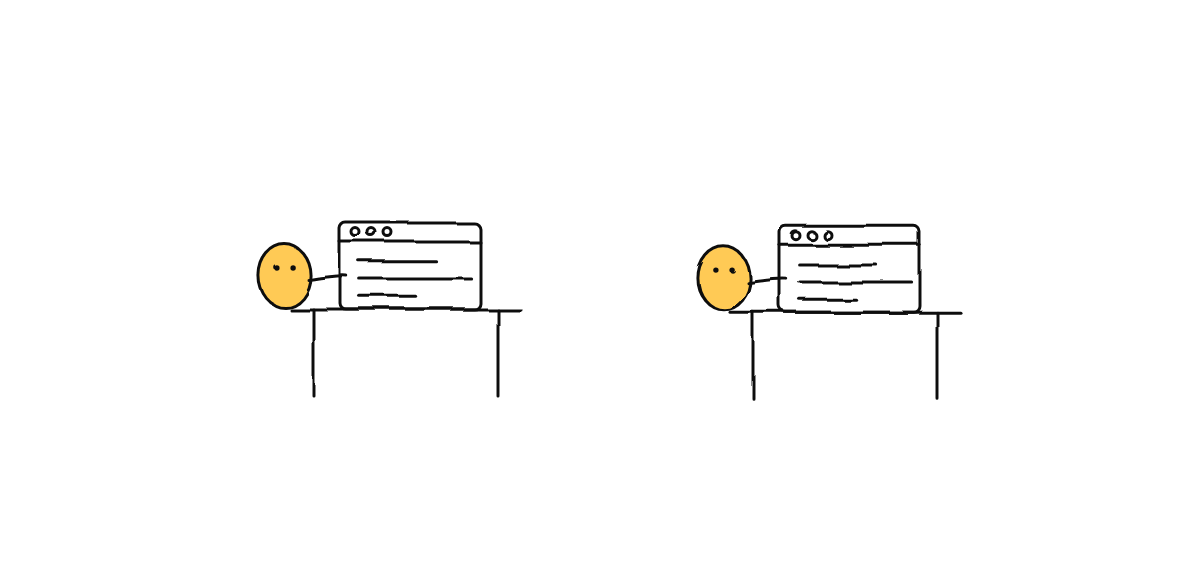
Step 2: Add Agent, pick Copilot
Click Add Agent on the floor. The visual provider picker now lists GitHub Copilot CLI alongside the other six engines. Pick it, name your hire, choose a working directory — and if you flip the git-isolation toggle, the agent gets its own dedicated worktree so it never collides with other agents on branches (more on why that matters in worktrees vs the hive).
Here’s the whole hire flow in nineteen seconds:
Copilot hires also work through voice — Realtime Michael’s spawn action can hire one — and if you paste a raw copilot ... command into the custom-command field, the harness infers the binary and treats it as a Copilot engine.
Step 3: choose a model
The Copilot engine ships with a model picker, COPILOT_MODELS, with three options:
- Claude Sonnet 4.5 — the default.
- GPT-5.4 — if you’d rather run OpenAI’s model.
- auto — let Copilot pick per request.
Whatever you choose is passed through as --model <id> on each turn. This is a per-hire choice, so you can run one Copilot worker on Sonnet and another on GPT-5.4 and compare them on the same board.
What auto-mode gates
Under the hood, every turn a Copilot agent takes is Copilot CLI’s documented non-interactive print mode:
copilot -p "<prompt>" -s --allow-all-tools --no-ask-user [--model <id>]The auto-approval flags — -s --allow-all-tools --no-ask-user — are gated by the floor’s auto-mode toggle, exactly like every other engine. Auto-mode on: Copilot gets its documented allow-all flags and works without stopping to ask permission per tool call. Auto-mode off: the flags are omitted and the agent runs conservatively. The floor-level guardrails — the approvals queue, budgets, the circuit breaker — sit above all of that regardless of engine.
Session continuity is handled with --resume (best-effort): print mode exits after every turn, but the next turn reattaches the prior session, so follow-ups don’t start cold.
The honest inbox caveat
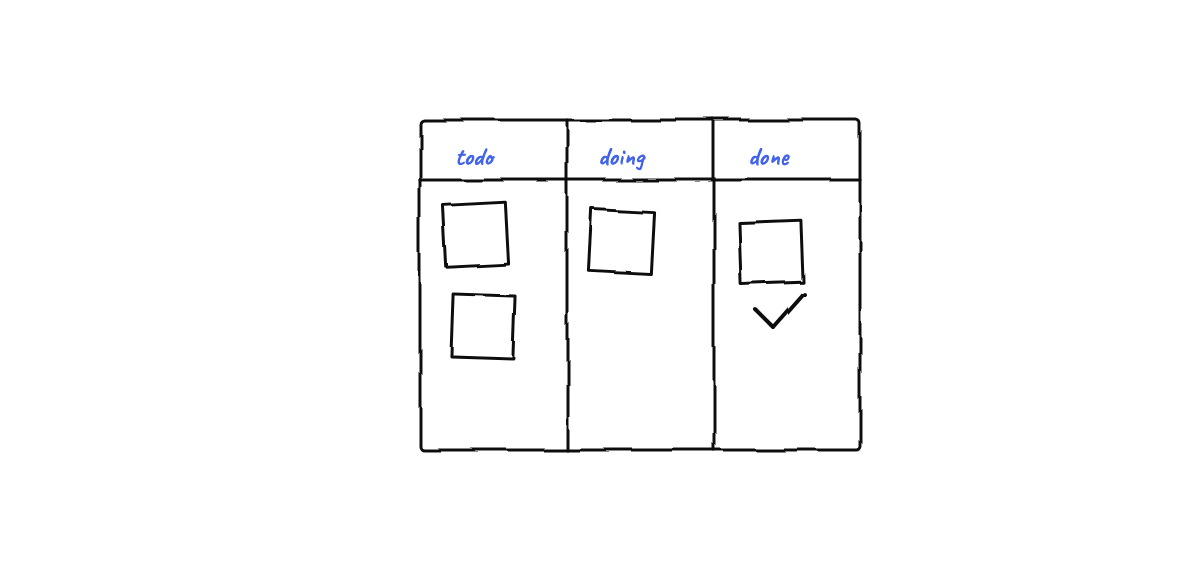
This is the part worth reading twice. Print mode exits per turn and exposes no hook bridge, which means a Copilot worker can’t do the thing hive-aware engines do: sit idle, notice mail in its inbox, and drain it. The engine is registered as non-hive-aware (canReceiveInbox: false) on purpose.
So what happens when another agent routes a message to your Copilot worker? It bounces to the GOD orchestrator instead of silently dropping. Michael sees the bounced mail and handles or re-routes it — the message survives, it just doesn’t land in a mailbox nobody is checking. (If you’re new to how Michael adjudicates traffic, the GOD orchestrator post explains the routing model.)
The practical rule: use Copilot workers for dispatched, self-contained tasks. “Take this issue, fix it, report back” is their sweet spot. Long-running conversational back-and-forth between agents is not — hand that to a hive-aware engine. Shipping the limitation honestly, with a bounce path instead of a black hole, was a deliberate design call in PR #101, and it’s the right one.
Recap
npm install -g @github/copilot— or let the missing-CLI installer offer it.- Add Agent → pick the Copilot engine → optionally flip git isolation.
- Pick a model: Claude Sonnet 4.5 (default), GPT-5.4, or auto.
- Know the shape: print mode per turn,
--resumecontinuity, auto-mode gates the approval flags. - Assign dispatched, self-contained tasks; let mail-heavy coordination live on hive-aware engines.
That’s a seventh engine on your floor, powered by a subscription you already have.
Try it
Grab the latest build from the releases page — and if the Copilot engine saves you a hire, a star on GitHub is how community contributions like PR #101 keep coming.
FAQ
Do I need a new API key to run a GitHub Copilot CLI agent in Munder Difflin?
No. The Copilot engine authenticates through your existing GitHub Copilot login — the same auth the copilot CLI uses in a plain terminal. There is no BYOK key to paste into Settings for this engine; if you can run copilot in your shell, you can hire it on the floor.
What models can a Copilot CLI agent use?
The Add Agent flow includes a model picker for the Copilot engine with three options: Claude Sonnet 4.5 (the default), GPT-5.4, and auto, which lets Copilot choose. Your selection is passed to the CLI via the --model flag on every turn.
Why does my Copilot agent's inbox mail go to the orchestrator instead?
By design. Copilot CLI runs in non-interactive print mode, which exits after each turn and exposes no hook bridge, so a Copilot worker cannot sit idle and drain a mailbox. Rather than letting routed mail silently drop, the harness bounces it to the GOD orchestrator, which handles or re-routes it. Use Copilot workers for dispatched, self-contained tasks and they work great.
What does the auto-mode toggle change for Copilot agents?
In auto mode the harness adds Copilot's auto-approval flags (-s --allow-all-tools --no-ask-user) so the agent can use tools without stopping to ask. With auto mode off, those flags are omitted and Copilot runs more conservatively — the same gating every other engine on the floor gets.
Does a Copilot agent keep context between turns if print mode exits every time?
Yes, best-effort. The engine uses Copilot CLI's --resume flag to reattach the previous session on the next turn, so follow-up prompts land in the same conversation rather than starting cold. It is session continuity, not a persistent process.
Who built the Copilot engine?
It's the first community-contributed provider in Munder Difflin — PR #101 by @anxkhn, shipped in v0.3.3. The engine registers Copilot as a provider preset alongside Claude Code, Codex, Antigravity, OpenCode, Crush, and pi.dev, and comes with a self-contained registry test asserting the command shape.