Run Your AI Agent Hive from Slack: The Complete Setup
Step-by-step setup for driving Munder Difflin's AI agent hive from Slack: create the app, set scopes, paste the tunnel Request URL, and @mention your bot to start work — done-summaries post back in-thread.
On Munder Difflin 0.5.2 or later, Slack connects without a public URL, and the fields have moved. Follow How to Connect Slack to Munder Difflin 0.5.2 for the current setup.
This is the full, working setup for driving your
Munder Difflin hive from Slack. Create a Slack app, add three bot scopes
(chat:write, channels:history, groups:history), paste the
Signing Secret and Bot User OAuth Token into Settings, then drop the
app's public tunnel Request URL into Slack's Event Subscriptions and subscribe to
app_mention + message events. @mention the bot to kick off
work; the office replies in-thread, ingests file attachments, and posts a done-summary when the task
finishes. One quirk to remember: that tunnel URL rotates on restart.
Munder Difflin runs a virtual office of AI agents on your own machine. Most days you drive that office from the desktop app. But the request often starts somewhere else — a teammate asks in a channel, or you’re away from your desk and want to kick off a run from your phone. The Slack integration closes that gap: @mention your bot in Slack, and the message becomes work for your hive. When the task finishes, a summary posts straight back into the same thread.
This is a complete how-to for the setup that’s live right now. It has two halves: the Slack app side (api.slack.com), and the Munder Difflin side (Settings). Do them in order and you’ll be triggering agents from chat in about ten minutes.
What you’re building
A message that @mentions your bot in a connected Slack channel becomes a task in the orchestrator’s queue — exactly like a task you’d type into the app yourself. GOD then triages it and routes it to the right agent. Two things make this feel conversational rather than fire-and-forget:
- Thread activation. The first @mention in a thread “activates” it. After that, you can keep replying in that same thread without re-mentioning the bot, and the hive keeps listening. It’s a real back-and-forth, not a one-shot command.
- Done-summaries. When the work lands, the office posts a summary reply in the same thread via
Slack’s
chat.postMessage. You see the result where you asked the question.
It also reads file and image attachments — drop a screenshot or a log file alongside your @mention and the hive ingests it.
Under the hood there’s no @slack/bolt, no framework, and nothing hosted in the cloud. A tiny
node:http server inside the app implements just the slice of Slack’s Events API it needs, and a
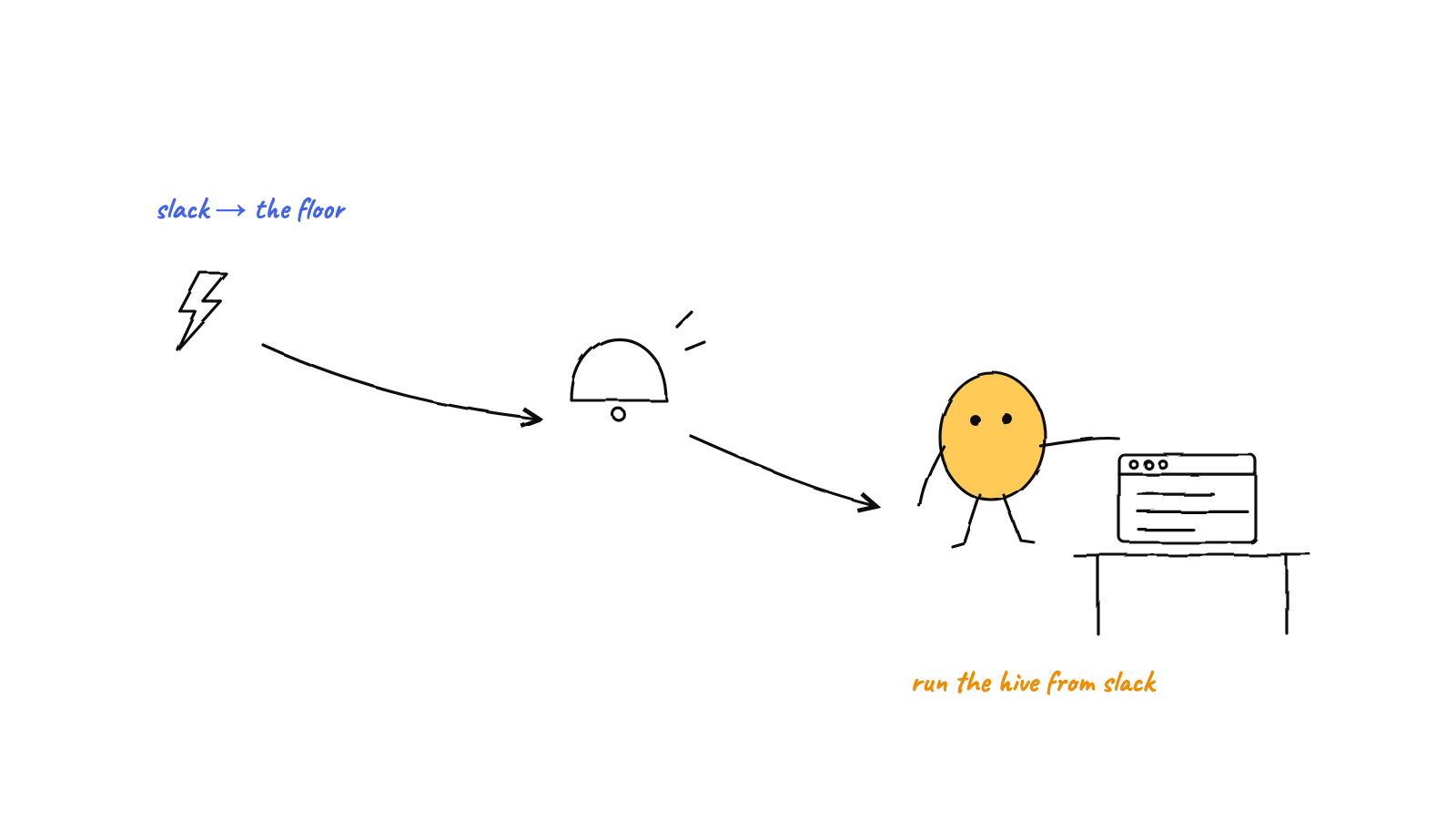
local tunnel gives Slack a public doorbell to ring. Your agents, their memory, and your code never leave
your machine.
Part 1 — Create the Slack app
Head to api.slack.com/apps and create a new app from scratch, in the workspace you want the bot to live in.
You’ll collect two secrets and set three scopes. Here’s exactly where each lives.
Signing Secret
In your app’s left nav, open Basic Information and find App Credentials. Copy the Signing Secret. This is what Munder Difflin uses to verify that every inbound request is genuinely from Slack — it never leaves your machine and is never logged.
Bot Token Scopes
Open OAuth & Permissions → Scopes → Bot Token Scopes and add these three:
chat:write— lets the bot post replies, including the done-summary, back into the thread.channels:history— lets Slack deliver message and thread-reply events from public channels.groups:history— the same, for private channels.
You don’t need anything beyond these three. The hive learns its own bot user id automatically from each event, so there’s no extra scope just to detect mentions.
Install and grab the Bot User OAuth Token
Still on OAuth & Permissions, click Install to Workspace and approve. Slack then shows a Bot
User OAuth Token that starts with xoxb- — copy it. That token authorizes the bot’s replies; like
the signing secret, it stays in the app’s main process and is never logged.
Keep both values handy. You’ll paste them into Munder Difflin next, then come back to finish Event Subscriptions.

Part 2 — Configure Munder Difflin
Open Munder Difflin and go to Settings. In the Slack section:
- Enable Slack.
- Paste the Signing Secret.
- Paste the Bot User OAuth Token (
xoxb-…). - (Optional) Set a Channel ID to restrict ingestion to a single channel. Leave it blank to accept any channel the bot is in. This is the cleanest way to keep a noisy workspace from turning into a noisy hive.
- (Optional) Change the port if
3847(the default) is already taken on your machine.
Start it. The app binds the local webhook server and opens a public tunnel, then shows you a Request URL — the public address Slack will call. Copy that URL; you need it for the last step.
If the tunnel can’t start, the app surfaces a real error rather than handing you a dead URL. The local handler is the security boundary, so it stays up regardless — but you do need a working tunnel URL for Slack to reach it.
Part 3 — Point Slack at your Request URL
Back in your Slack app, open Event Subscriptions and toggle Enable Events on.
Paste the Request URL from Munder Difflin into the Request URL field. Slack immediately fires a
one-time url_verification handshake at it; the app answers the challenge and Slack shows a green
Verified. (If it doesn’t verify, jump to the troubleshooting note below — it’s almost always the
tunnel.)
Now scroll to Subscribe to bot events and add:
app_mention— fires when someone @mentions the bot. This is the primary trigger.message.channels— message events in public channels (for thread replies in an activated thread, and file_share uploads).message.groups— the same, for private channels.
Save changes. Slack may prompt you to reinstall the app to apply the new event subscriptions — do it.
That’s the whole loop. The hive triggers on:
- a direct @mention of the bot in a connected channel,
- any reply inside a thread the bot was already mentioned in (no re-mention needed),
- a file or image upload that @mentions the bot.
It deliberately ignores the bot’s own posts, edits, channel-join notices, and every other message subtype — so it never talks to itself and never reacts to channel noise.
Try it
In a channel where the bot is a member, type something like:
@YourBot summarize the open PRs in the api repo and flag anything stale
The message lands in the queue, GOD routes it, and an agent picks it up. Keep the conversation going by replying in that same thread — the hive is still listening. When the task is done, a summary appears right there in the thread.

Troubleshooting: the Request URL rotates on restart
Here’s the one quirk worth tattooing on the back of your hand. The public Request URL comes from an ephemeral tunnel, and it changes every time the app restarts. So if Slack suddenly stops triggering your agents — verification was green yesterday, silence today — it’s almost always because the app was restarted and the old URL went stale.
The fix is quick:
- Stop and Start Munder Difflin’s Slack integration (or just relaunch the app).
- Copy the new Request URL it shows you.
- Paste it back into Slack’s Event Subscriptions → Request URL and let it re-verify.
Triggers resume the moment Slack shows Verified again. If you find yourself doing this a lot, get into the habit of re-checking the Request URL whenever you restart — it’s the single most common reason Slack triggering “breaks.”
Why it’s built this way
It would have been easier to host this in a cloud function. Doing it as a local webhook is the point. Every request is HMAC-verified against your signing secret in constant time, with a five-minute replay guard and a size cap checked first — anything suspicious gets a flat 403. The secrets stay on your box. Slack is only a thin remote surface for starting and watching work; the office itself — agents, memory, git history — never leaves your machine. It’s the same local-first philosophy behind everything Munder Difflin does: keep the control plane on your computer, and let the outside world knock politely at the door.
Pair it with scheduled missions and the picture rounds out: timers put recurring work into the queue, Slack puts ad-hoc work into the queue, and your office runs both — whether or not you’re watching.
FAQ
How do I connect Slack to Munder Difflin? Create a Slack app, add the chat:write,
channels:history, and groups:history bot scopes, install it, then paste the Signing Secret and
xoxb- Bot User OAuth Token into Settings. Copy the app’s Request URL into Slack’s Event Subscriptions,
subscribe to app_mention + message events, and @mention the bot to start work.
Which scopes does it need? Just three: chat:write for replies and done-summaries,
channels:history and groups:history so Slack delivers the message and thread-reply events the hive
listens to.
Why did Slack stop triggering? The Request URL is from an ephemeral tunnel that rotates on restart. Relaunch the app, copy the new URL, and re-paste it into Event Subscriptions.
Munder Difflin turns a Slack thread into a remote control for an AI office that still lives entirely on your machine — orchestrated by GOD, verified at the edge, and queued like any other task. Download Munder Difflin to run your hive from chat; it’s free and open source.
FAQ
How do I connect Slack to Munder Difflin?
Create a Slack app at api.slack.com/apps, grant the bot the chat:write, channels:history, and groups:history scopes, install it, then paste the Signing Secret and Bot User OAuth Token into Munder Difflin's Settings. Enable Slack, copy the public tunnel Request URL the app gives you into Slack's Event Subscriptions, and subscribe to app_mention plus message events. @mention the bot in a channel to start work.
Which Slack scopes does the hive need?
Three Bot Token Scopes: chat:write (so the bot can post done-summaries back in-thread), channels:history and groups:history (so Slack delivers the message and thread-reply events the hive listens to). The Signing Secret authenticates every inbound request; the xoxb- Bot User OAuth Token authorizes the bot's replies.
Why did Slack stop triggering my agents?
The public Request URL comes from a local tunnel that is ephemeral — it rotates every time you stop and start the app. If triggers go quiet, restart Munder Difflin, copy the new tunnel URL, and re-paste it into Slack's Event Subscriptions → Request URL. Slack re-verifies and triggers resume.